1. Open AI Scribe
Open the AI Scribe tab in your patient notes and click “Open AI Scribe”. The floating voice recorder opens, ready for you to start.
Give your patient your attention while Practice Master Pro AI Scribe captures the consultation. Record the session, stop when you're ready and find the transcript right inside your patient notes — ready for the next step.
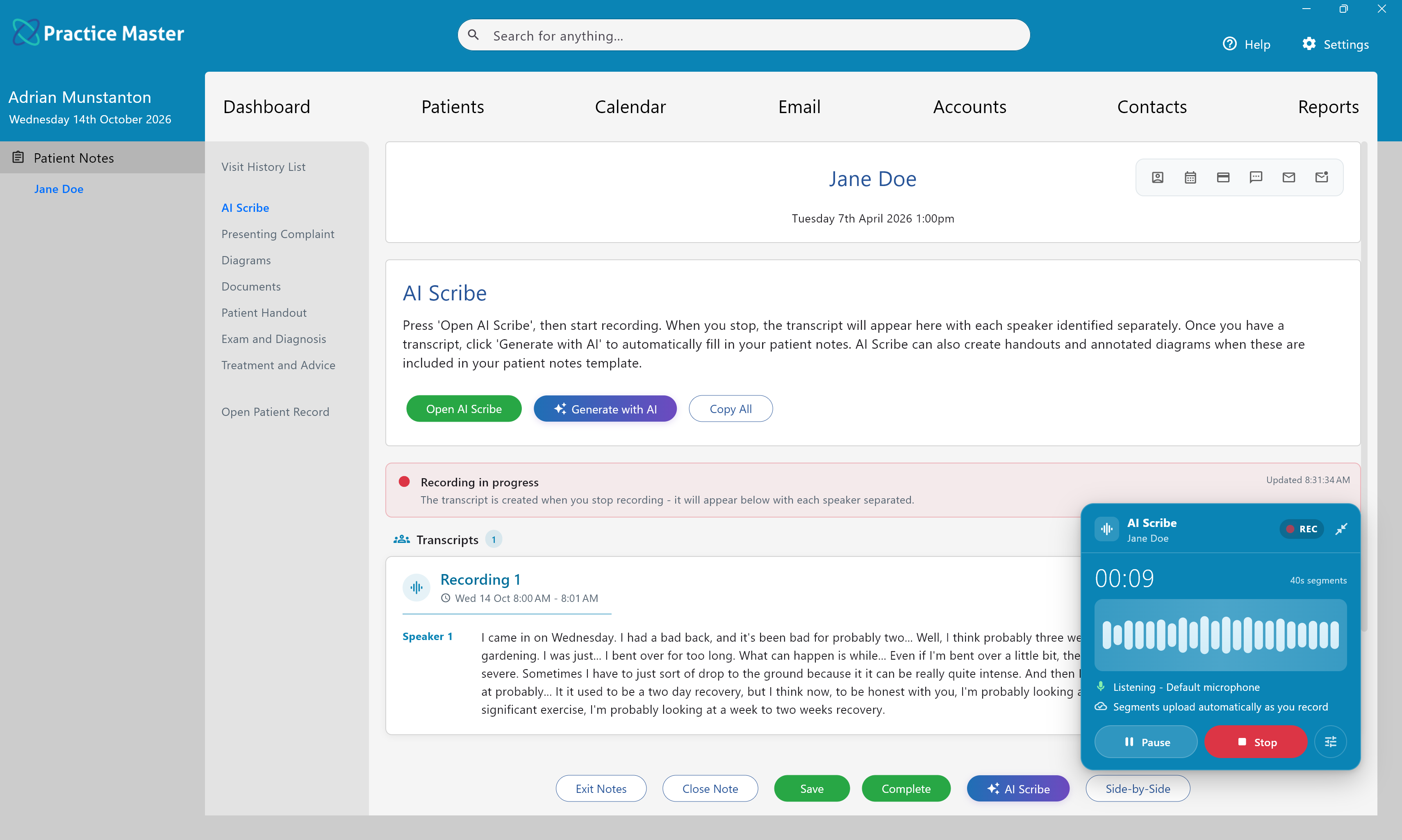
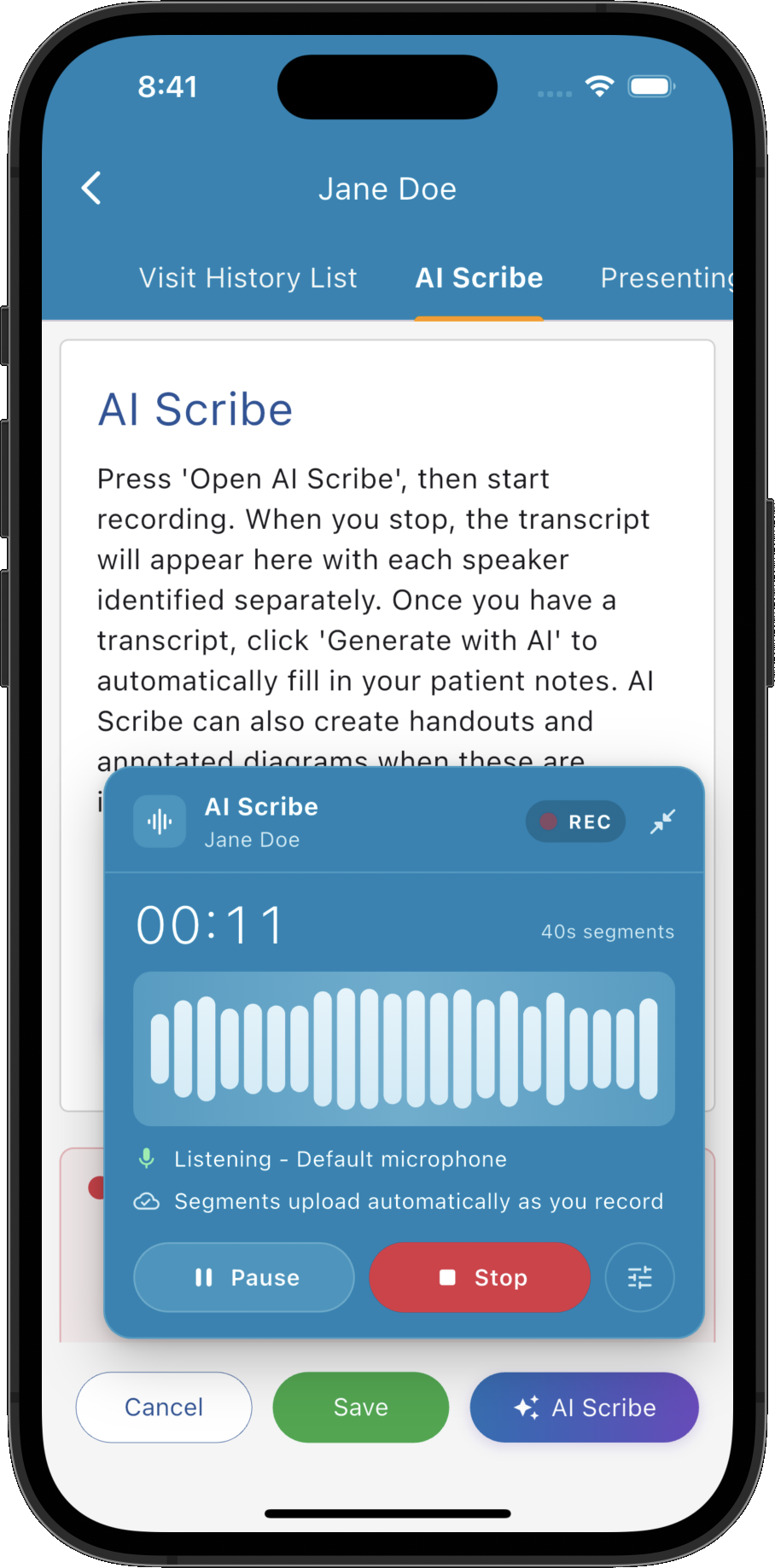
AI Scribe works within your patient notes, so recording a consultation becomes part of your everyday clinical workflow.
Open the AI Scribe tab in your patient notes and click “Open AI Scribe”. The floating voice recorder opens, ready for you to start.
Click “Start recording” and capture the whole session. Keep talking while you move through the app and refer to the information you need.
Click “Stop Recording” to send the recording for transcription. Once transcribed, it appears in the tab's main Transcripts area.
Keep the templates that work for your practice. Add AI Scribe as a custom tab in your patient notes templates, or use the “AI Scribe” button at the bottom of patient notes to add it to an existing template.
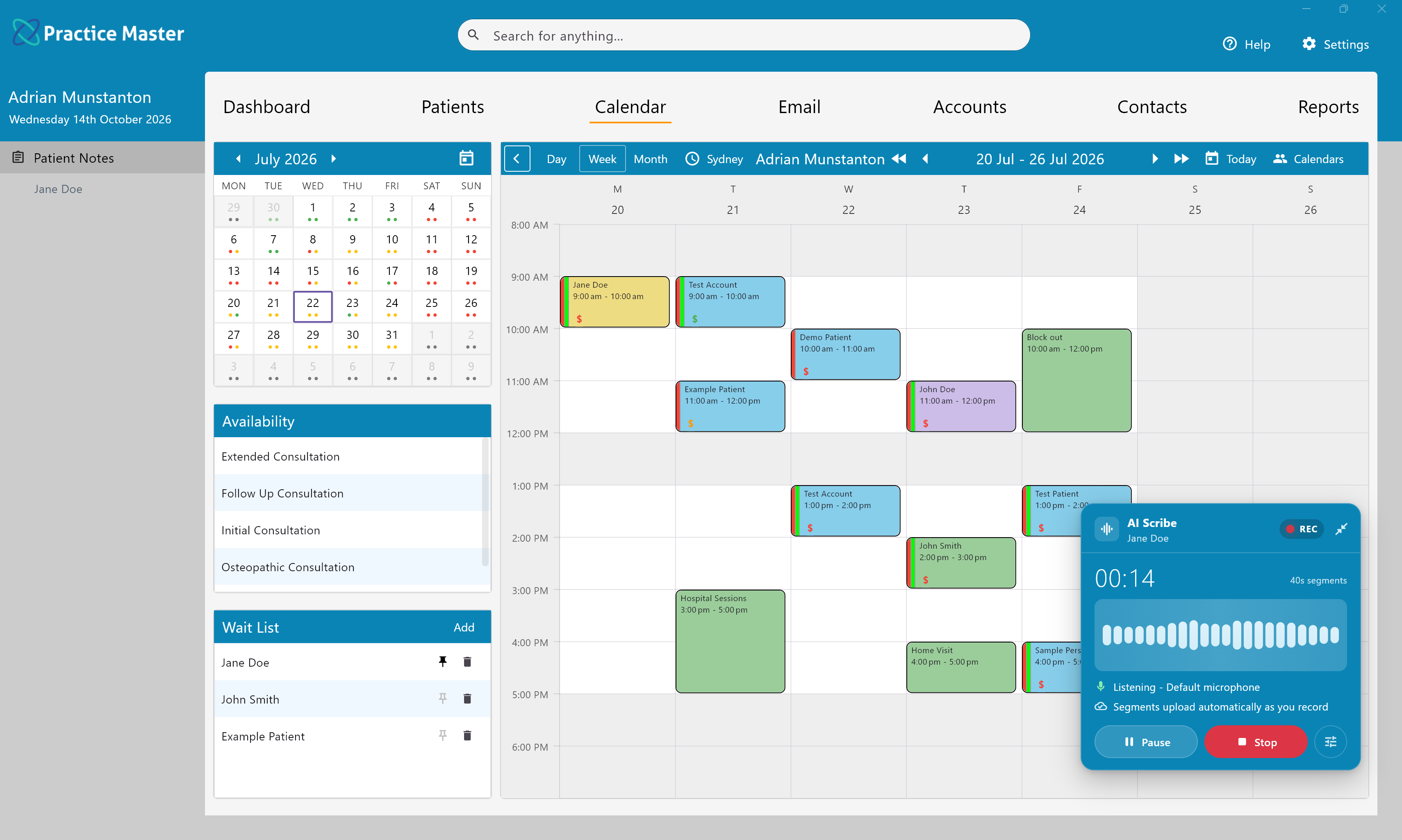
The floating AI voice recorder can keep recording while you navigate to other screens or open other sets of patient notes. You can look up information without interrupting the recording.
Need to capture more after you've stopped? Start another recording. Each new transcript appears below the existing ones in the AI Scribe tab, making it easy to capture the session in one recording or several.
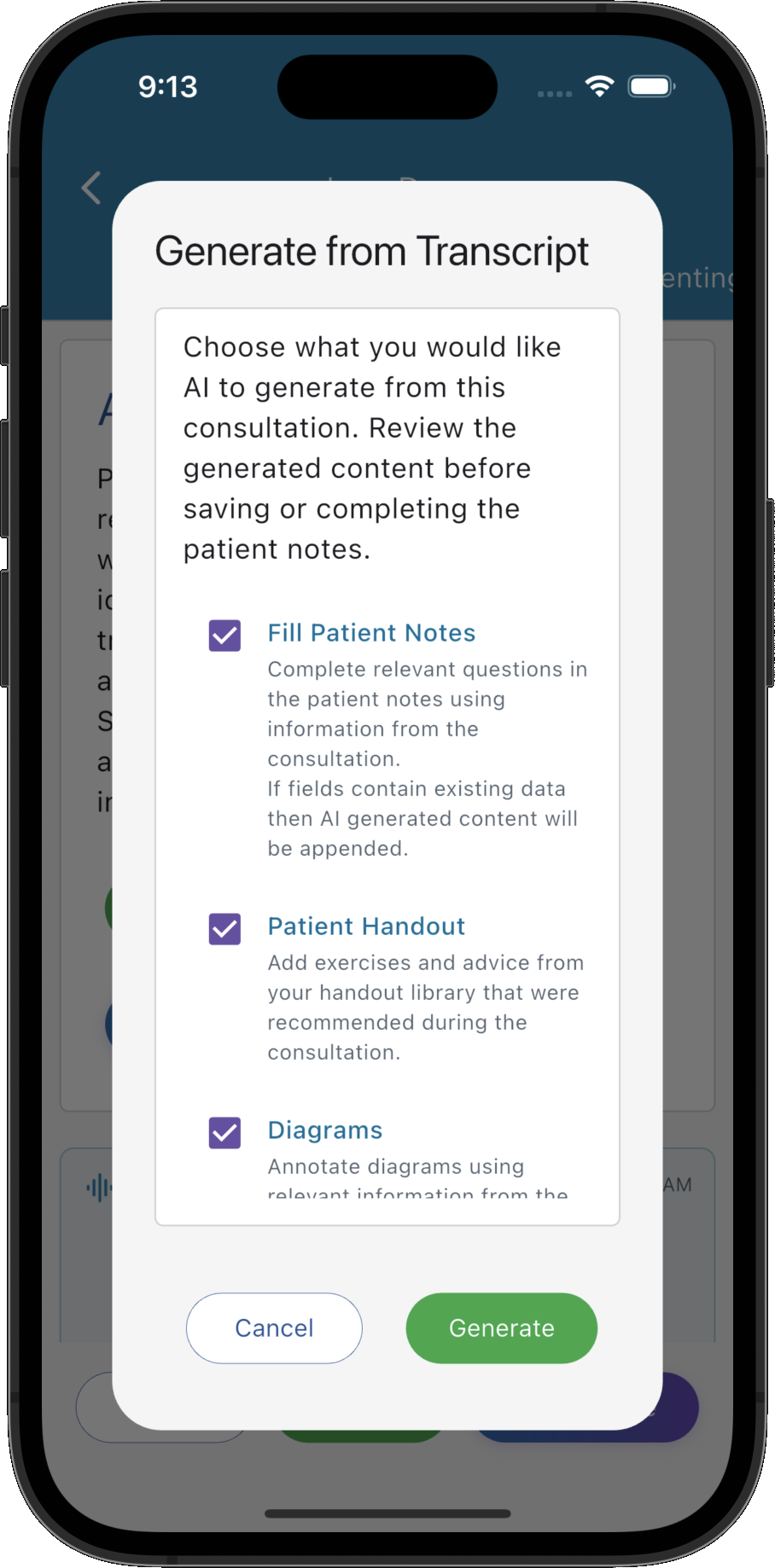
Click “Generate with AI” to fill in your custom patient note templates, create a handout from items you've selected in the handout library, and create and annotate diagrams using your selected diagram library backgrounds. Review and edit the results before finalising your notes.
Explore AI Patient Notes →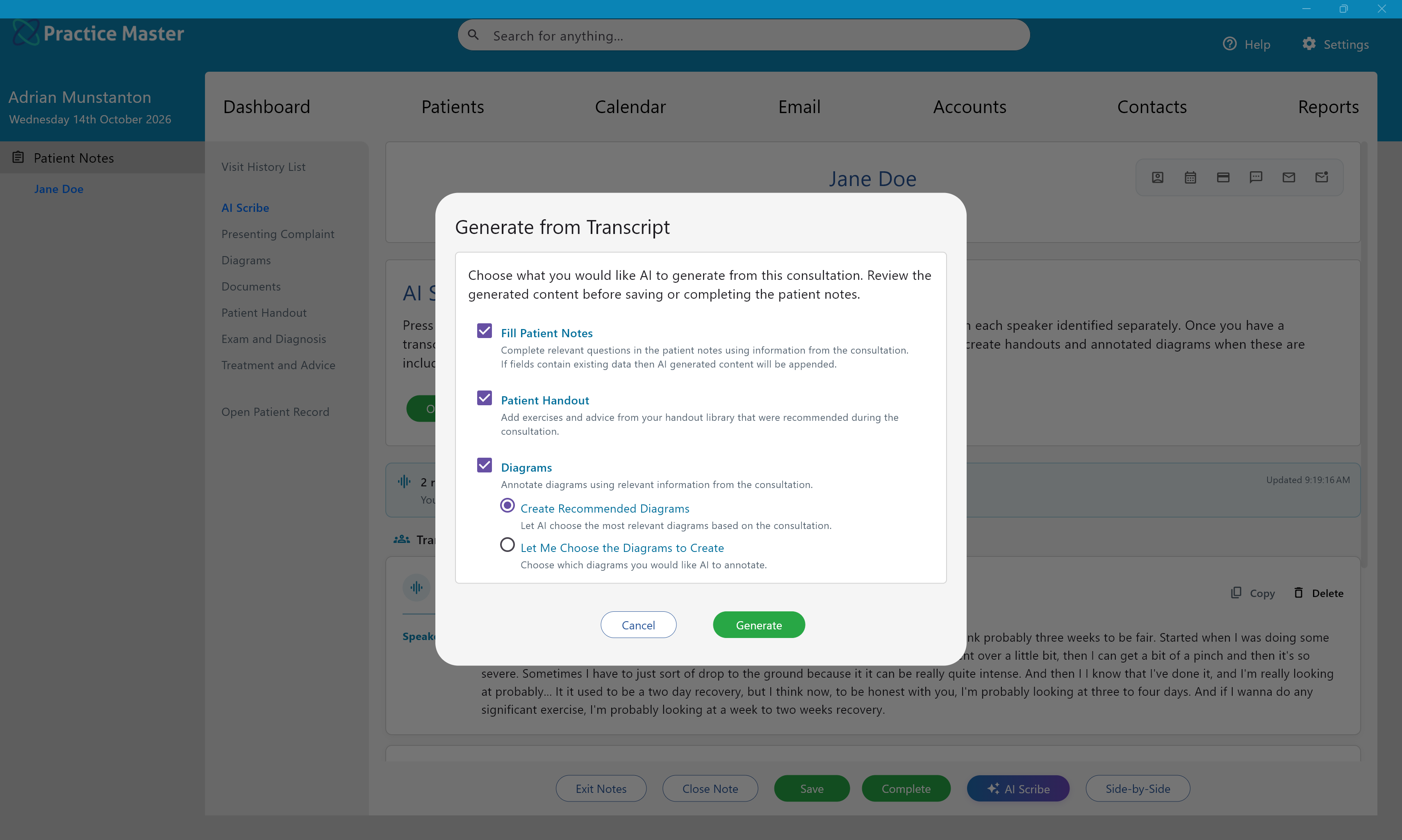
A connection interruption shouldn't mean losing the consultation you've just captured. AI Scribe protects your recordings until they can be uploaded and transcribed.
If you lose internet during a session, you can continue recording. Your consultation doesn't have to stop because the connection does.
Recordings waiting to upload are sent for transcription when your internet connection resumes.
If your device runs out of battery, the audio already recorded stays safe. It will be uploaded and transcribed the next time the device is powered on and connected to the internet.
Bring consultation recording and transcription into your patient notes with Practice Master Pro. Get in touch to ask about trying AI Scribe for your practice.