
Contact Accounts
View and manage every invoice associated with the selected contact.
Key Activities
- View every invoice associated with the current contact.
- Create new invoices directly from the contact's record.
- Quickly identify paid, partially paid and unpaid invoices using colour coding.
- Open, edit or delete invoices directly from the list.
- Search invoices by status, owner, reference number or summary.
Overview
The Accounts tab provides a complete financial history for the selected contact. Every invoice issued to the contact is displayed in one place.
From this screen you can quickly review outstanding balances, create new invoices, open existing invoices and monitor the contact's payment history without leaving the Contact Record.
Common Tasks
The following common tasks can help you get the most out of this screen:
Create a new invoice
- Click New Invoice.
- Complete the invoice details.
- Save the invoice.
Open an invoice
- Double-click an invoice in the list, or
- Click the Edit button beside the invoice.
Find an invoice
- Enter part of the invoice status, owner, reference number or summary into the search box.
- The invoice list filters automatically.
Review outstanding balances
- Look for invoices displayed in red or orange.
- Open the invoice to record additional payments if required.
Screen Reference
A detailed description of various screen elements:
Contact Navigation
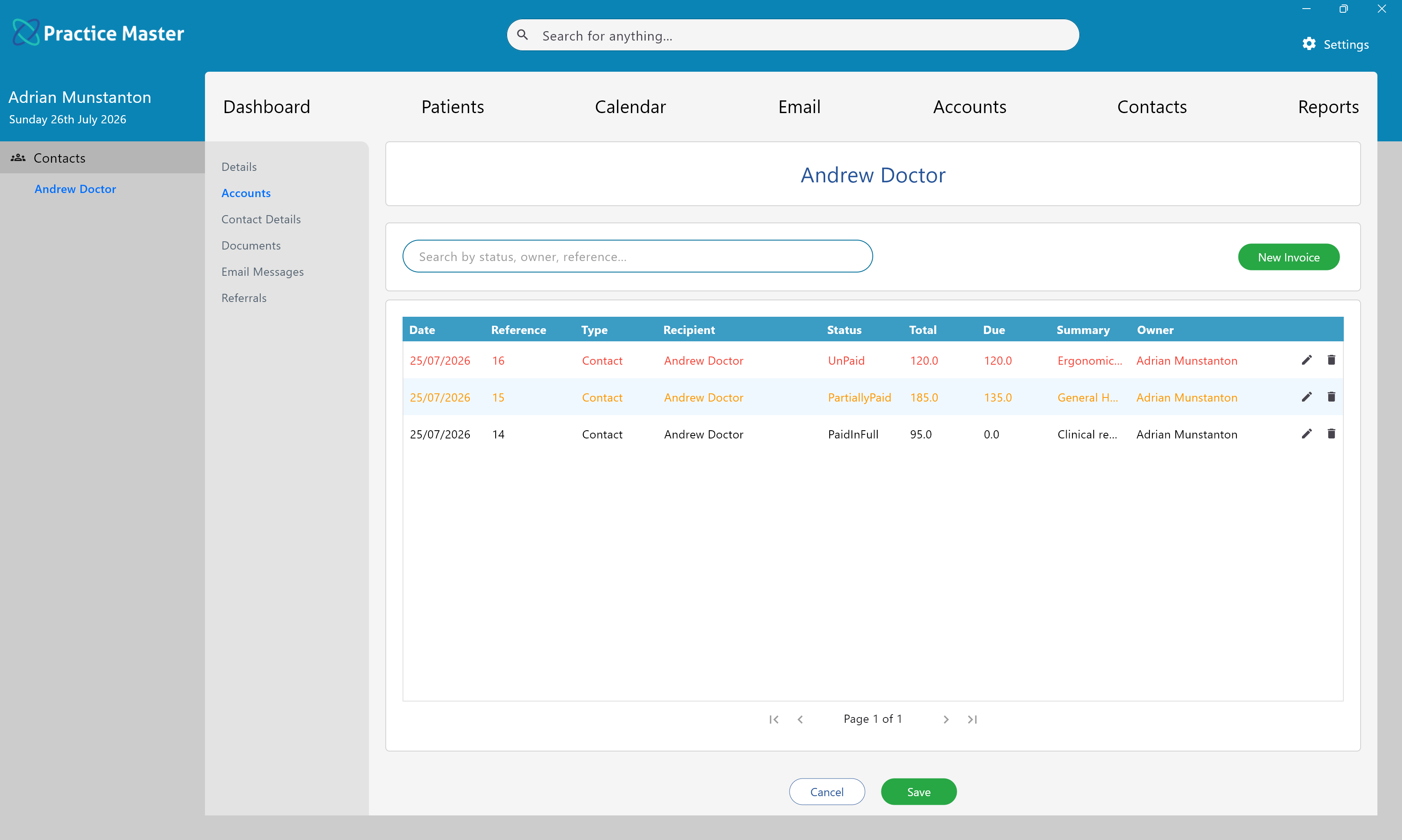
The navigation panel on the left provides access to every section of the Contact Record. Selecting Accounts displays all invoices associated with the current contact.
Search Box
Filters invoices by payment status, owner, reference number or invoice summary, making it easy to locate specific invoices.
Invoice List
Displays every invoice belonging to the contact, including:
Each invoice displays its date, reference number, invoice type, recipient, payment status, invoice total, outstanding balance, summary and owner.
Invoice Status Colours
- Black – Invoice has been paid in full.
- Orange – Invoice has been partially paid.
- Red – Invoice is unpaid.
Invoice text is colour coded so payment status can be recognised immediately.
Edit Invoice
Opens the selected invoice allowing invoice items, payments and other details to be viewed or updated.
Delete Invoice
Removes the selected invoice from the contact's financial history.
New Invoice
Creates a new invoice for the current contact without leaving the Contact Record.
Contact Financial History
This screen provides a complete financial history for the contact, making it easy to review previous charges, outstanding balances and payment activity.
Save
Saves any changes made to the Contact Record.
Cancel
Closes the Contact Record without saving any unsaved changes.