
Running Reports
Generate reports from saved report templates by selecting a template, reviewing the report criteria and running the report.
Key Activities
- Select from any saved report template.
- Review or modify the report criteria before generating the report.
- Date ranges and other filters can be adjusted where permitted by the template.
- Generated reports are automatically added to the Reports list.
- Reports are automatically opened as CSV files for immediate viewing.
Overview
The Run Report screen allows you to generate reports using previously created report templates. Report templates define the columns, sorting and default criteria so that reports can be generated quickly and consistently throughout the practice.
Running a report is a simple process. Select the report template you wish to use, review or modify the report criteria if required, then click Run. The completed report is automatically added to the main Reports list and opened as a CSV file ready for viewing, printing or further analysis.
Common Tasks
The following common tasks can help you get the most out of this screen:
Run a report
- Open the Reports screen.
- Click Run Report.
- Select the required report template.
- Review or modify the report criteria.
- Click Run.
- The generated report will open automatically and be added to the Reports list.
Run a report with different criteria
- Select the required report template.
- Adjust the available criteria.
- Click Run.
Screen Reference
A detailed description of various screen elements:
Report Template
Before this screen appears you will first be prompted to select a report template from the Report Template Browser. The selected template determines the information that will be retrieved, the report layout and the default report criteria.
Date Range
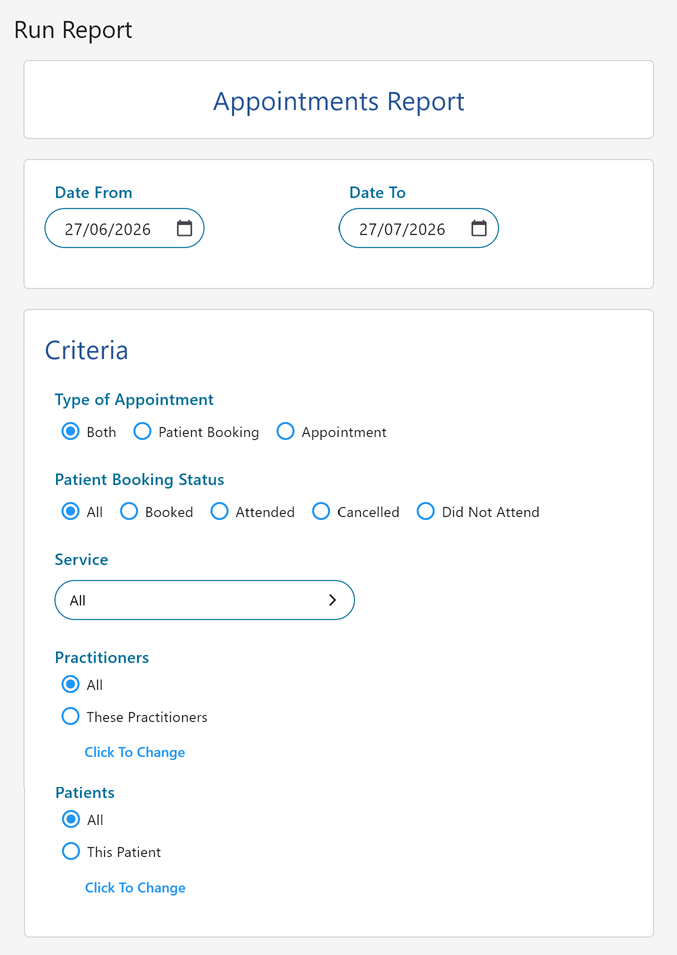
Many reports allow a date range to be specified. The default dates are taken from the report template but can be modified if the template has been configured to allow criteria changes.
Criteria
The Criteria section contains the filters available for the selected report type. Examples include appointment type, booking status, services, practitioners, patients, invoice status, payment status and many other options depending on the report template.
These values are initially populated from the template defaults. If the report template allows it, you may change these values before generating the report.
Run
Clicking Run generates the report using the selected criteria. Once complete, the report is automatically added to the Reports list for future reference and simultaneously opened as a CSV file in your default spreadsheet application.
Tips
Helpful tips for this screen are below:
Templates save time
Frequently used reports should be created as report templates. This allows staff to generate complex reports in just a few clicks without needing to configure columns and sorting each time.
Review the criteria before running
If the template permits changes, take a moment to verify the date range and other report filters before generating the report to ensure the results contain exactly the information you require.
Use fixed templates for consistency
Some report templates have their criteria locked by the template designer. These templates always generate the report using the same predefined settings, ensuring consistent reporting across the practice.
Generated reports are retained
Every report that is generated is automatically added to the Reports list where it can be reopened, emailed, exported or deleted at a later time without needing to regenerate the report.
CSV files work with most spreadsheet applications
Reports are generated as CSV files, making them easy to open in Microsoft Excel, Google Sheets, LibreOffice Calc and many other spreadsheet applications for further analysis or printing.