
Patient Notes
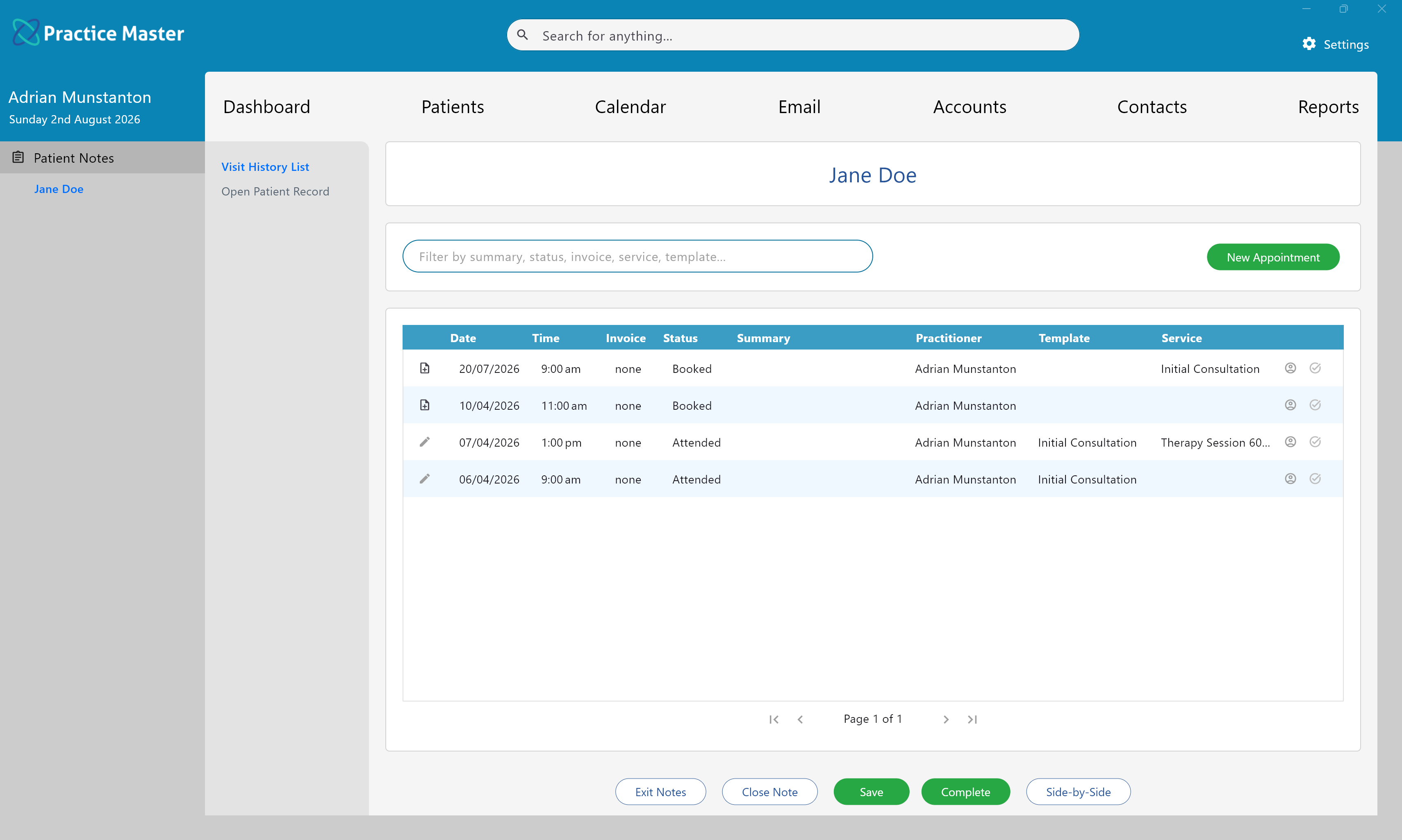
View a patient's appointment history, record clinical notes and access every part of their consultation from a single workspace.
Key Activities
- View the patient's complete appointment and consultation history.
- Open and edit patient notes using your customised patient notes templates.
- Navigate between consultation tabs such as assessments, diagrams, handouts and other custom sections.
- Create appointments directly from the visit history.
- Invoice appointments, communicate with patients and manage referrals without leaving the notes screen.
- Mark notes as completed or private when a consultation has been finalised.
Overview
The Patient Notes screen is the central clinical workspace within Practice Master. It provides access to every appointment for the selected patient together with the clinical notes, diagrams, handouts, referrals, invoices and other information recorded during each visit.
When no consultation is open, the screen displays the patient's complete visit history. Opening an appointment loads the patient notes template used for that consultation and displays each of its tabs in the navigation panel, allowing you to move quickly between different sections of the consultation.
Common Tasks
The following common tasks can help you get the most out of this screen:
Create notes for a consultation
- Click the Create Notesicon to the left of an appointment in the Visit History list.
- Double-click a template from the 'Patient Notes Template' selector that pops up.
Open a consultation
- Double-click an appointment in the Visit History list, or
- Click the Edit Patient Notes button beside the appointment.
Create a new appointment
- Click New Appointment.
- Select the appointment details.
- Save the appointment.
Navigate between note tabs
- Open a consultation.
- Select any tab from the left-hand navigation.
- The selected section of the patient notes will be displayed.
Complete a consultation
- Review the consultation notes.
- Click Complete.
- The notes become read-only and future changes are recorded through the Amendments tab.
- When completed the green bar on the side of the appointment on the calendar disappears as a visual queue the notes are finished.
Create a copy of a set of notes
- Right-click the notes you want to copy and select Copy Notes - these are the source notes.
- Right-click a Booked appointment and select Paste Notes Over - these are the target notes.
Screen Reference
A detailed description of various screen elements:
Visit History List
Displays every appointment recorded for the selected patient together with the appointment date, time, invoice status, appointment status, summary, practitioner, notes template and service.
Double-clicking a visit opens the patient notes for that consultation.
Patient Notes Navigation
- Visit History List always returns to the appointment history.
- Open Patient Record provides quick access to the patient's record.
- When a consultation is open, every tab from the selected Patient Notes Template appears between these two fixed options.
The navigation panel on the left changes depending on whether a consultation is open.
These template tabs may contain standard question and answer pages or specialised tabs such as diagrams, handouts, prescriptions or other custom content.
Search
Filters the visit history by summary, appointment status, invoice status, service or notes template.
Visit Status Indicators
- Private notes.
- Completed notes.
Icons displayed beside each appointment indicate important information including:
Right-Click Menu
- Open Patient Notes - Opens the selected consultation.
- Patient Record - Opens the patient's record.
- Invoice This Appointment - Creates an invoice linked directly to the appointment.
- Copy Notes - Marks the selected consultation as the source for copying notes.
- Paste Notes Over - Replaces the notes in the selected consultation with the copied notes.
- Print/Preview Notes - Displays a printable version of the consultation.
- Accounting - Create appointment invoices, view appointment invoices, invoice the patient independently of the appointment or view every patient invoice.
- Appointment - Edit, move, rebook, duplicate or locate the appointment on the calendar.
- Appointment Status - Mark notes as completed, make them private, cancel the appointment or mark the patient as having not arrived.
- Documents - Create document templates or open the patient's Documents & Letters.
- Email - Compose emails, use templates or view correspondence.
- Send SMS - Send an SMS using the patient's recorded mobile number.
- Intake Form - Email the online intake form or open an existing submission.
- Referrals - Create referrals or view previous referrals.
- Delete Notes Only - Deletes the consultation notes while leaving the appointment intact.
- Delete Appointment and Notes - Removes both the appointment and all associated notes.
Right-clicking an appointment provides quick access to almost every task related to that consultation.
Completed Notes
Completed consultations become read-only to preserve the clinical record. Any subsequent changes should be recorded using the Amendments tab, maintaining a complete audit trail of the patient's history.
Private Notes
Private consultations are only visible to the practitioner who created them and administrators with the appropriate permissions.
New Appointment
Creates a new appointment for the current patient.
Save
Saves any changes made to the current consultation.
Complete
Marks the consultation as completed and finalises the clinical notes.
Side-by-Side
Opens the consultation in side-by-side mode, allowing multiple note tabs to be viewed simultaneously for easier comparison and data entry.
Close Note
Closes the currently open consultation and returns to the Visit History List.
Exit Notes
Closes the Patient Notes workspace and returns to the previous screen.