
Patient Referrals
Create professional referral letters using your practice referral templates and maintain a complete referral history for every patient.
Key Activities
- Create referral letters directly from the Patient Record.
- Select the practitioner or organisation from your Contacts database.
- Referral templates automatically populate patient, practice and contact details.
- Maintain a complete referral history for every patient.
- Referral documents remain editable after they have been created.
- Referral letters can be printed, emailed or converted to PDF.
Overview
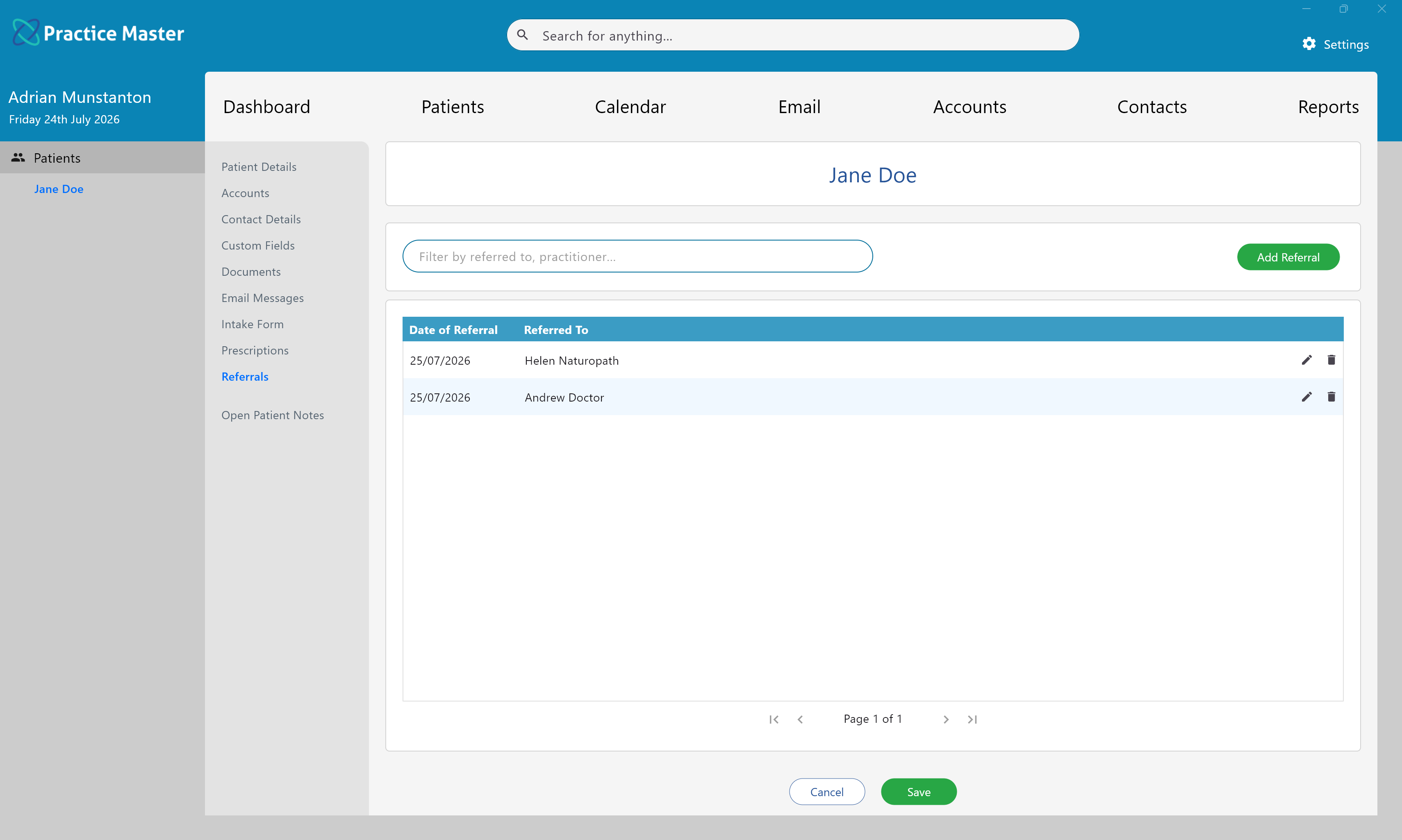
The Referrals page keeps a complete history of every practitioner, specialist or organisation that a patient has been referred to.
Rather than manually creating referral letters, Practice Master uses your Referral Word Template (configured in the Administration area) to automatically create the document with the patient's details, your practice details and the selected contact's details already merged into the document. You simply complete the clinical information before saving or sending the referral.
Every referral remains linked to both the patient and the referred contact, making it easy to locate previous referrals from either record.
Common Tasks
The following common tasks can help you get the most out of this screen:
Create a new referral
- Click Add Referral.
- Select the practitioner or organisation from the Contact Browser.
- Your Referral Word Template opens automatically.
- Complete the body of the referral letter.
- Save the document.
Open an existing referral
- Double-click a referral in the list.
- The original referral document opens in Microsoft Word.
- Edit, print or email the document as required.
Find previous referrals
- Use the search box to filter referrals by practitioner or organisation.
Screen Reference
A detailed description of various screen elements:
Search
Filters the referral list as you type, making it easy to locate referrals for a particular practitioner or organisation.
Referral List
Displays every referral created for the current patient together with the referral date and who the patient was referred to.
Double-click any referral to reopen the original Word document for viewing or editing.
Add Referral
Opens the Contact Browser where you select the practitioner or organisation you are referring the patient to.
Once selected, Practice Master automatically creates a referral document using your Referral Word Template with all available patient, practice and contact details already merged into the document.
Right-click Menu
- Open the referred contact.
- Email the referral to the patient.
- Email the referral to the patient's nominated GP.
- Email the referral to the referred practitioner.
- Create a blank email with the referral already attached.
- Save the referral document externally.
- Convert the referral to PDF before emailing or saving.
Right-clicking a referral provides additional actions including:
Email options automatically open the Compose Email window with the recipient already selected and the referral document attached.
Tips
Helpful tips for this screen are below:
Referral history is available from both records
The Patient Record shows every practitioner or organisation that the patient has been referred to.
The corresponding Contact Record also maintains a Referrals page, allowing you to view every patient that has been referred to that contact.
This two-way relationship makes it easy to review referral history from either perspective.
Configure your referral template once
By including patient, practice and contact merge fields in your Referral Word Template, most referral letters can be created in seconds with only the clinical content needing to be completed.