
Compose Email
Create professional emails with rich text formatting and attachments from your computer or patient records.
Key Activities
- Send emails from any configured email account.
- Address emails to one or more recipients using the To, CC and BCC fields.
- Use the rich text editor to create professional formatted emails.
- Attach files from your computer or directly from patient or contact records.
- Send immediately or cancel the message before it is sent.
Overview
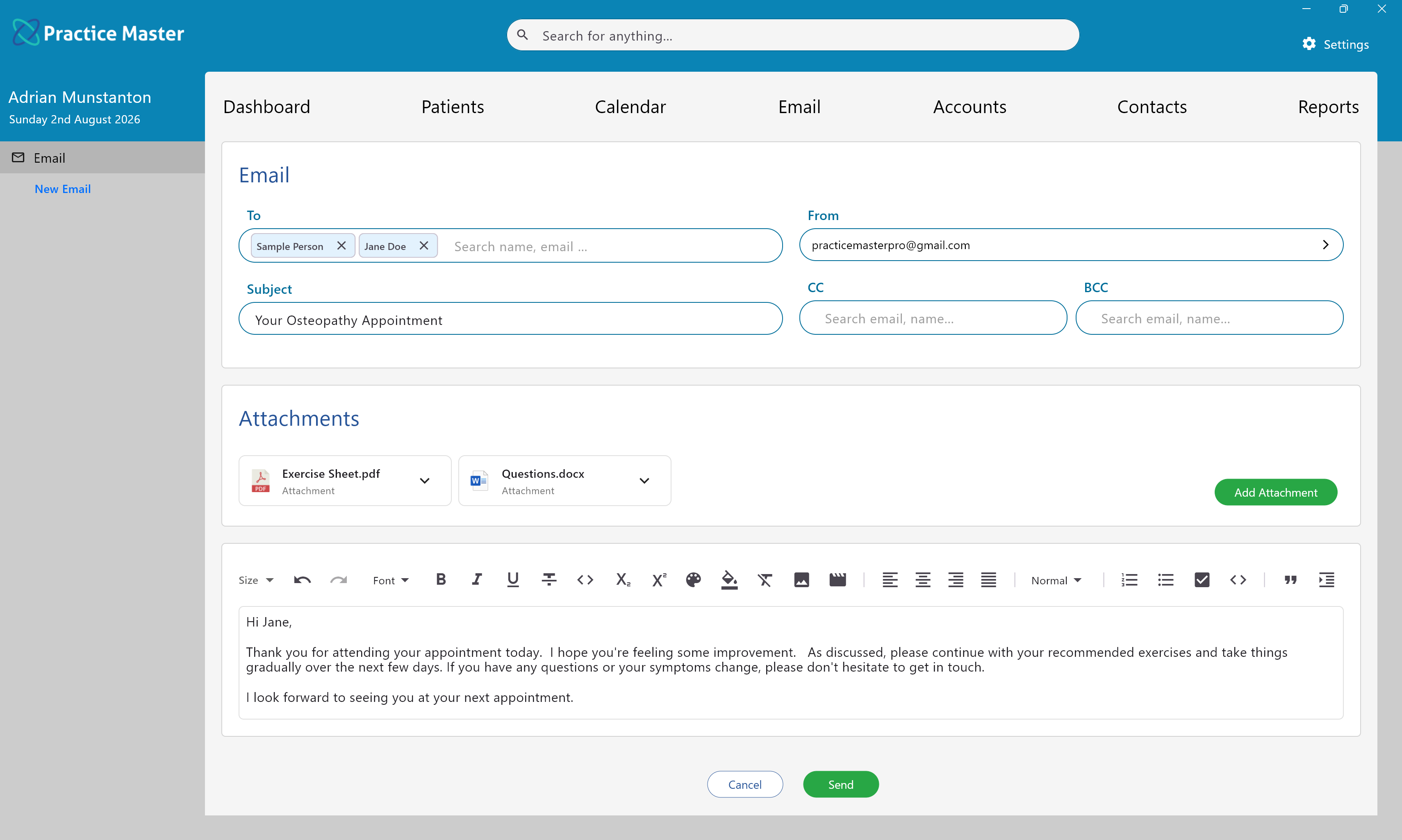
The Compose Email window allows you to create and send professional emails without leaving Practice Master. Emails support rich text formatting, attachments and multiple recipients, making it suitable for everyday communication with patients, contacts and other healthcare providers.
Attachments can be selected from your computer or reused directly from documents already stored within Practice Master, saving time and ensuring important patient information can be shared quickly when appropriate.
Common Tasks
The following common tasks can help you get the most out of this screen:
Compose a new email
- Select the recipient in the To field.
- Enter a subject.
- Type your message using the rich text editor.
- Add attachments if required.
- Click Send.
Attach a document
- Click Add Attachment.
- Select whether to browse your computer or choose an existing document.
- Select the required file.
- The attachment will be added to the email.
Send a copy to additional recipients
- Enter additional recipients into the CC or BCC fields.
- Complete the email and click Send.
Screen Reference
A detailed description of various screen elements:
To
Enter one or more primary recipients. Begin typing a name or email address and matching contacts will be suggested automatically.
From
Selects which configured email account the message will be sent from. This is useful when your practice manages multiple email addresses.
Subject
Enter a brief description of the email. A clear subject helps recipients quickly identify the purpose of the message.
CC
Carbon Copy recipients receive the email and are visible to everyone included in the message.
BCC
Blind Carbon Copy recipients receive the email but remain hidden from all other recipients.
Attachments
- Browse your computer for one or more files.
- Select documents stored in a patient's Documents & Letters tab.
- Select documents stored in a contact's Documents & Letters tab.
Displays all files attached to the email.
Clicking Add Attachment allows you to:
This makes it easy to reuse existing documents without needing to locate them again on your computer.
Rich Text Editor
- Bold, italic and underline.
- Font size and formatting.
- Text colour and highlighting.
- Text alignment.
- Bulleted and numbered lists.
- Indentation.
- Images.
- Code formatting.
- Block quotes.
- Undo and redo.
Create professionally formatted emails using familiar editing tools including:
Send
Sends the email using the selected email account. Once sent, the email will appear in the Sent Items folder for that account.
Cancel
Closes the compose window without sending the email.