
Home
Welcome to the Practice Master Help Centre, your complete guide to managing patients, appointments, communications, accounts and day-to-day practice administration.
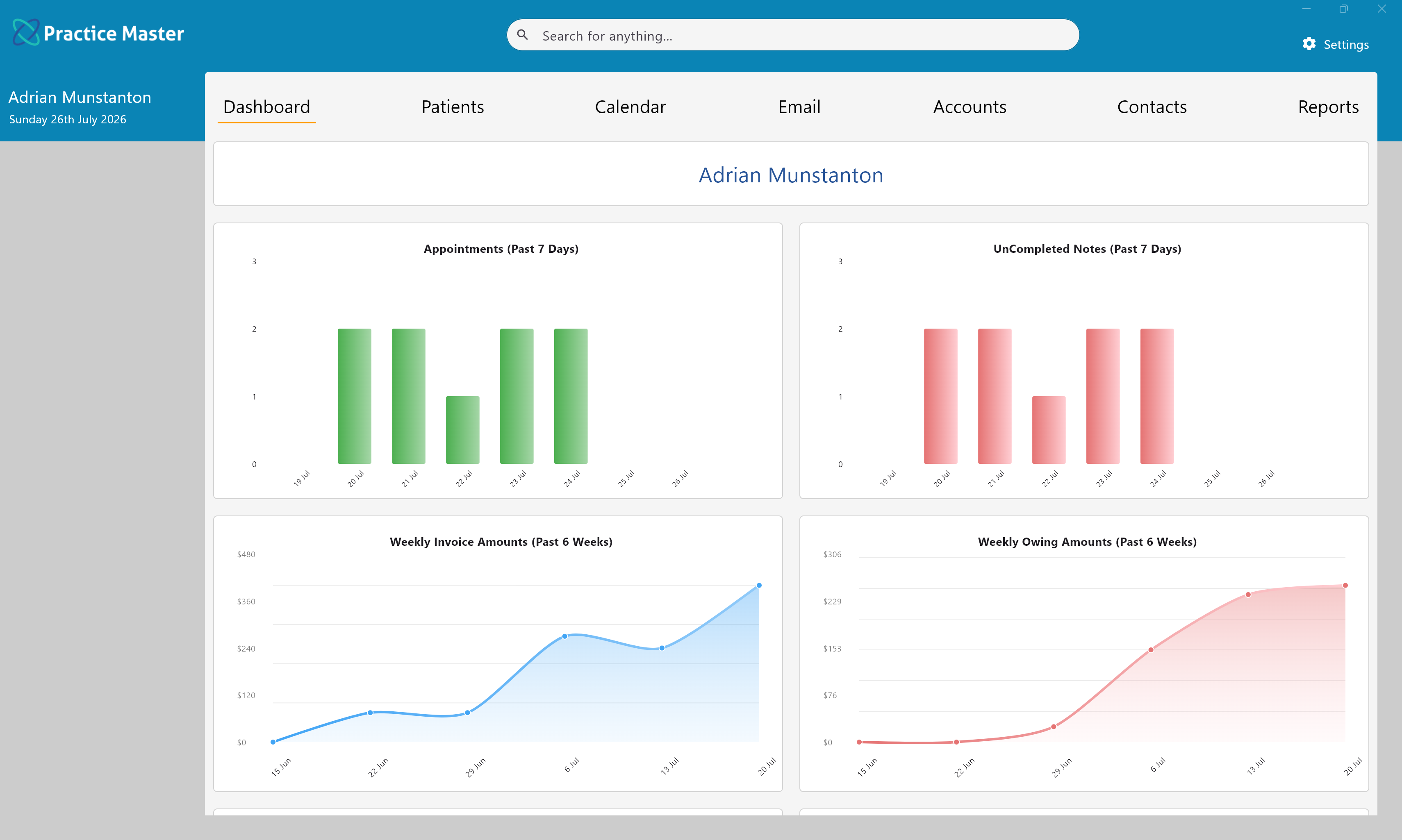
Key Activities
- Comprehensive guides covering every area of Practice Master.
- Step-by-step instructions for common tasks.
- Descriptions of every screen and major feature.
- Helpful workflow tips to improve day-to-day efficiency.
- Designed for both new users and experienced practitioners.
Overview
Welcome to the Practice Master Help Centre.
Practice Master has been designed to provide a complete practice management solution for allied health professionals, integrating patient management, appointments, clinical notes, accounting, communications, documents, reporting and much more into a single easy-to-use application.
Every feature within Practice Master has been designed to work together. Rather than entering the same information in multiple places, appointments, invoices, patient notes, referrals, documents, emails, SMS messages and reports are all connected, allowing you to spend less time on administration and more time caring for your patients.
This Help Centre contains detailed guides for every area of the application, including explanations of each screen, common tasks, practical tips and workflow suggestions to help you get the most from Practice Master.
Common Tasks
The following common tasks can help you get the most out of this screen:
Getting Started
- Create your practitioners and practice settings.
- Add your services and appointment types.
- Create your first patient.
- Book an appointment.
- Create patient notes and invoices.
- Explore the remaining features as your practice grows.
Finding Help
- Use the navigation menu to browse topics by feature.
- Use the search box at the top of the Help Centre to quickly locate articles.
- Each page contains common tasks, explanations and practical tips.
Screen Reference
A detailed description of various screen elements:
Patients
Manage patient demographics, appointments, clinical notes, documents, referrals, prescriptions, accounts and communications from a single patient record.
Calendar
Schedule appointments, manage practitioner availability, organise wait lists, book recurring appointments and coordinate multiple practitioner calendars.
Accounts
Create invoices, record payments, process Medicare and health fund claims, manage outstanding balances and produce financial reports.
Contacts
Store referral providers, specialists, general practitioners, insurers, suppliers and other professional contacts, all linked directly to your patients.
Email & SMS
Communicate with patients and contacts using integrated email and SMS, complete with templates, correspondence history and appointment reminders.
Reports
Create reusable report templates and generate reports covering appointments, patients, invoices, payments and many other areas of your practice.
Tips
Helpful tips for this screen are below:
Everything is connected
Most areas of Practice Master are tightly integrated. For example, appointments link directly to patients, invoices, clinical notes, referrals, documents and communications, reducing duplication and improving workflow efficiency.
Start with the Patient Record
Much of your daily work begins from the Patient Record. From there you can access appointments, accounts, notes, documents, referrals, prescriptions and correspondence without needing to navigate elsewhere.
Use Templates
Document templates, email templates, SMS templates and report templates can dramatically reduce repetitive work while ensuring consistency throughout the practice.
Take advantage of right-click menus
Nearly every list within Practice Master provides a context menu with shortcuts to related actions. These menus are designed to minimise navigation and provide quick access to the most commonly used functions.
Use Search
Most lists throughout Practice Master include powerful search and filtering capabilities, making it easy to locate patients, contacts, appointments, invoices and documents, even in very large practices.