
Accounting
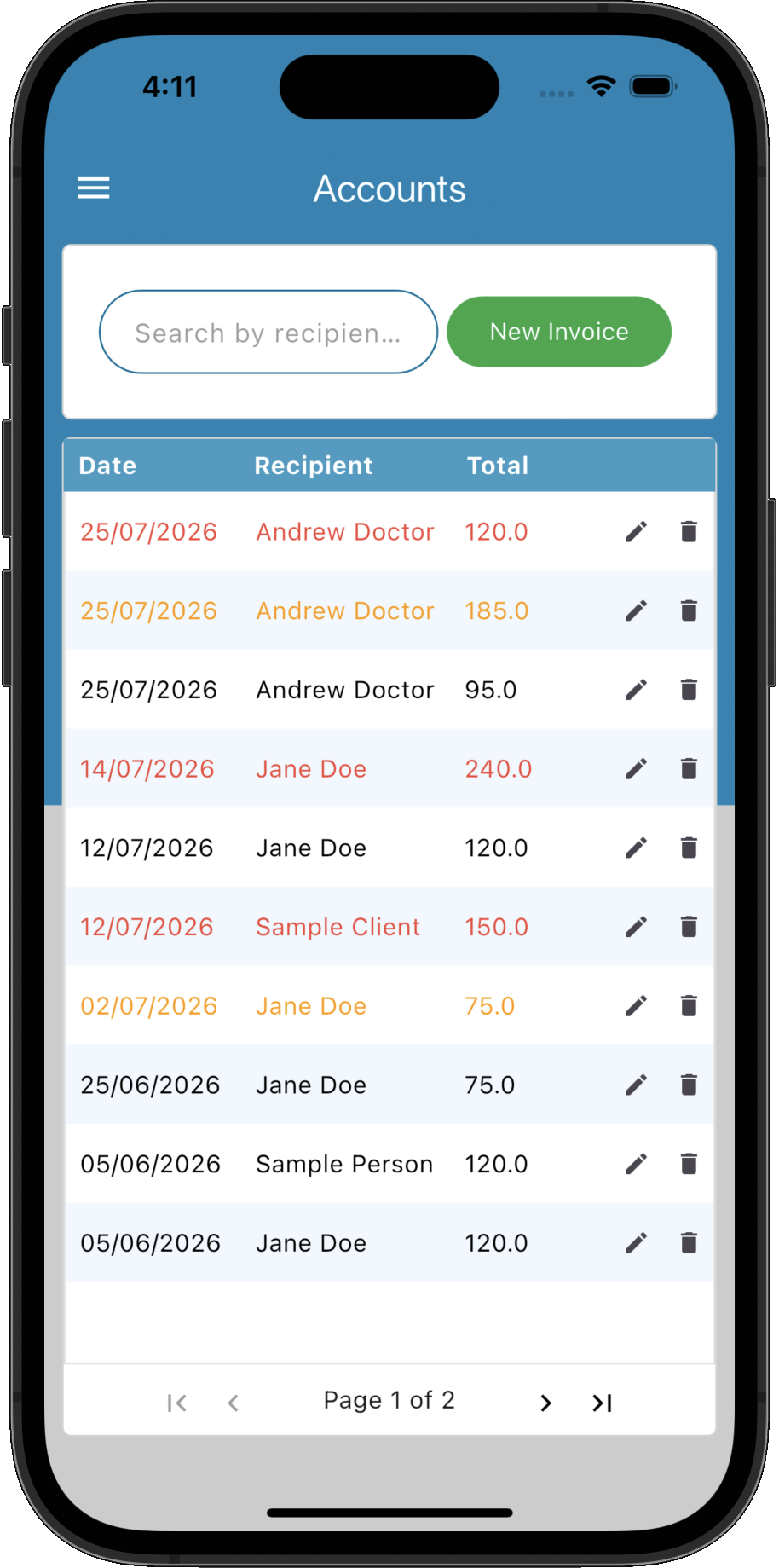
View, manage and track every invoice issued by your practice from a single screen.
Key Activities
- View every invoice created by your practice in a single list.
- Search invoices by recipient, status, owner, reference number or summary.
- Create new invoices using the New Invoice button.
- Quickly identify paid, partially paid and unpaid invoices using colour coding.
- Email, print, cancel or delete invoices directly from the invoice list.
- Open the associated patient, contact or patient notes directly from the invoice.
Overview
The Accounts screen provides a complete overview of every invoice issued by your practice. It allows practitioners and administration staff to quickly locate invoices, monitor payment status and perform common accounting tasks from a single location.
Each invoice displays its reference number, recipient, invoice type, payment status, total, outstanding balance, summary, owner and recurrence status. Common actions such as emailing, printing and opening the associated patient record are available directly from the invoice list.
Common Tasks
The following common tasks can help you get the most out of this screen:
Create a new invoice
- Click New Invoice.
- Select the recipient.
- Add one or more invoice items.
- Save the invoice.
Find an invoice
- Enter part of the recipient's name, reference number, status, owner or summary into the search box.
- Select the required invoice from the filtered results.
Open an invoice
- Double-click an invoice in the list, or
- Right-click the invoice and select Open Invoice.
Email an invoice
- Right-click the invoice.
- Select Email to Recipient.
- Review the email and click Send.
Screen Reference
A detailed description of various screen elements:
Search Box
Quickly locate invoices by recipient name, invoice status, owner, reference number or summary. The invoice list updates automatically as you type.
Invoice List
Displays all invoices including the invoice date, reference number, invoice type, recipient, payment status, total amount, outstanding balance, summary, owner and recurring status.
Invoice Status Colours
- Black - Invoice has been paid in full.
- Orange - Invoice has been partially paid.
- Red - Invoice is unpaid.
Invoice text is colour coded to make payment status easy to identify at a glance:
Right-Click Menu
- Open Invoice - Opens the selected invoice.
- Email to Recipient - Emails the invoice to the recipient's email address.
- Print/Preview - Displays a printable preview of the invoice.
- Open Patient Record - Opens the associated patient record (patient invoices only).
- Open Contact Record - Opens the associated contact record (contact invoices only).
- Open Patient Notes - Opens the patient notes associated with the visit (visit invoices only).
- Cancel Invoice - Cancels the invoice while preserving its history.
- Delete Invoice - Permanently removes the invoice.
- Email - Compose an email, create one from a template or view previous correspondence with the invoice recipient.
- Send SMS - Sends an SMS message to the invoice recipient using their recorded mobile number.
Right-clicking an invoice provides quick access to common accounting and communication tasks.
Edit Invoice
Click the Edit button beside an invoice to open it for viewing or editing.
Delete Invoice
Click the Delete button to remove an invoice. You may also delete an invoice using the right-click menu.
New Invoice
Creates a new invoice for a patient, contact or other recipient. New invoices may be linked to appointments, services, products, prescriptions or other billable items.
Pagination
Use the navigation controls at the bottom of the screen to move through large numbers of invoices.