
New Patient
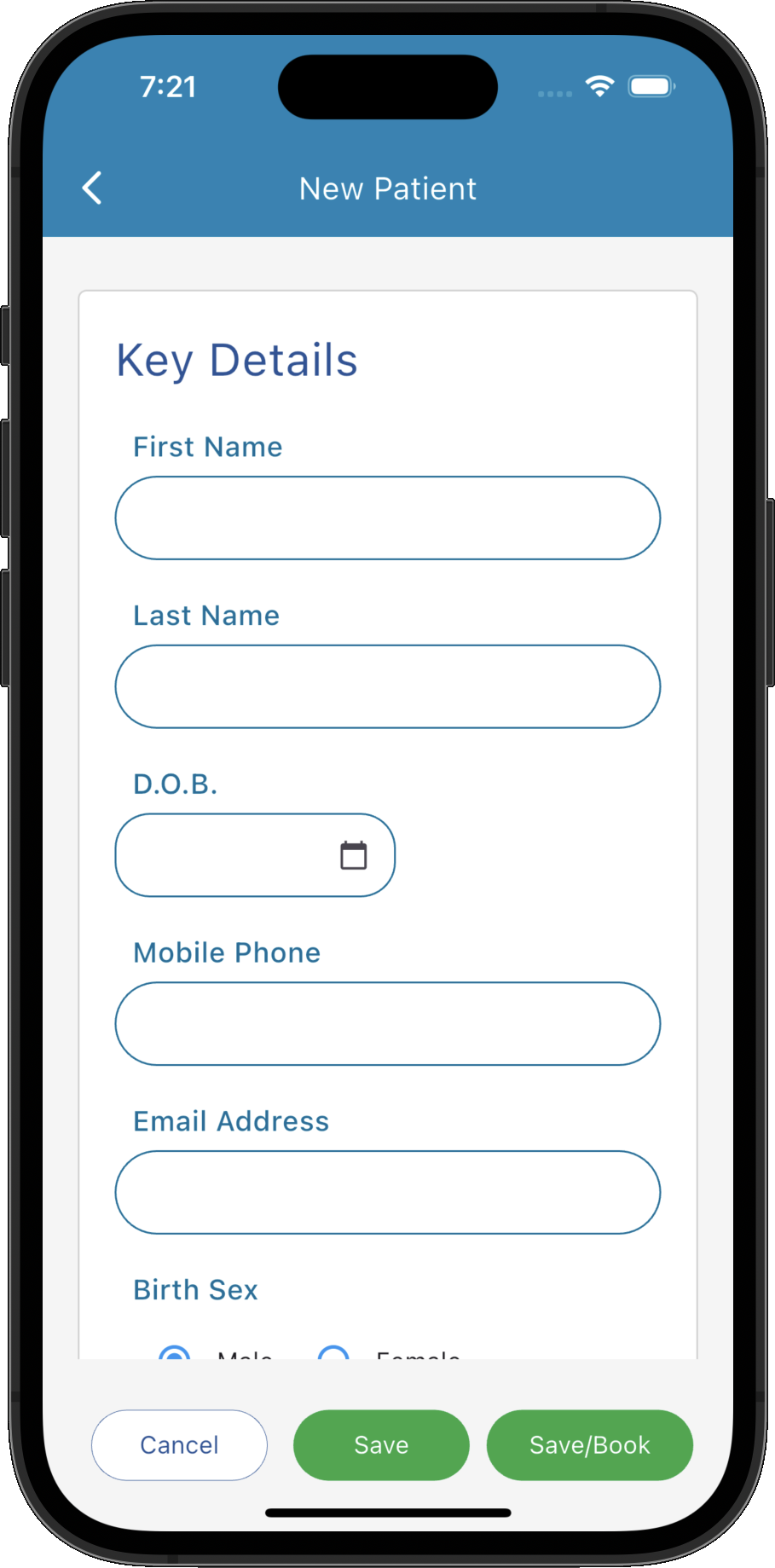
Create a new patient record by entering their personal, contact, health and relationship information.
Key Activities
- Create complete patient records in a single screen.
- Record personal details, emergency contacts, GP information and health cards.
- Store appointment preferences, reminders and marketing preferences.
- Link parents or guardians to child patients.
- Support custom fields configured specifically for your practice.
- Optionally save the patient and immediately create their first appointment.
Overview
The New Patient screen is used to create a complete patient record before appointments, invoices, prescriptions and clinical notes are recorded. Patient information is organised into logical sections, making it easy to capture both essential details and optional information during the registration process.
Only the information relevant to your practice needs to be entered. Additional information can be added or updated at any time after the patient has been created.
Common Tasks
The following common tasks can help you get the most out of this screen:
Create a new patient
- Enter the patient's key details.
- Complete any additional information required by your practice.
- Click Save.
Create a patient and immediately book an appointment
- Complete the patient's details.
- Click Save & Book.
- The patient will be saved and the appointment booking window will open automatically.
Assign a General Practitioner
- Click Select GP.
- Select the required contact.
- The GP will be linked to the patient's record.
Assign a Parent or Guardian
- Click Select Parent.
- Select an existing patient.
- The parent or guardian will be linked to the patient.
Screen Reference
A detailed description of various screen elements:
Key Details
Contains the patient's essential identifying information including their name, date of birth, mobile phone number, email address and birth sex.
Personal Details
- Preferred Name can be used throughout Practice Master instead of the patient's legal first name.
- Appointment Colour allows appointments for this patient to be displayed using a custom calendar colour.
- Critical Info highlights important information practitioners should immediately be aware of.
- Notes stores general administrative notes.
- SMS/Email Reminders enables appointment reminders.
- Marketing records whether the patient has consented to receive marketing communications.
Stores additional personal information including preferred name, occupation, gender identity, appointment colour, timezone and internal notes.
Home Address
Stores the patient's residential address including suburb, state, postcode and country.
Emergency Contact
Records the details of the person who should be contacted in the event of an emergency, including their relationship to the patient.
Relationships
Stores family and relationship information including marital status, partner, children and parent or guardian details.
Parent information can also be used when producing invoices for child patients where appropriate.
GP Details
Links the patient's regular General Practitioner or other referring practitioner from your Contacts list.
This information can later be used when creating referrals, correspondence and clinical documents.
Health Cards
Stores Medicare and private health insurance details for the patient, including membership numbers and card references where applicable.
Custom Fields
Displays any additional fields configured specifically for your practice. Custom fields allow Practice Master to be tailored to different professions and workflows without modifying the application.
Save
Saves the patient record and returns to the Patients screen.
Save & Book
Saves the patient record and immediately opens the appointment booking screen, making it easy to register new patients while scheduling their first visit.
Cancel
Closes the window without saving any unsaved changes.