
Patient Prescriptions
Create professional prescriptions, dispense products and generate invoices directly from the Patient Record.
Key Activities
- Create and manage multiple prescriptions for each patient.
- Add products directly from your Invoice Items list.
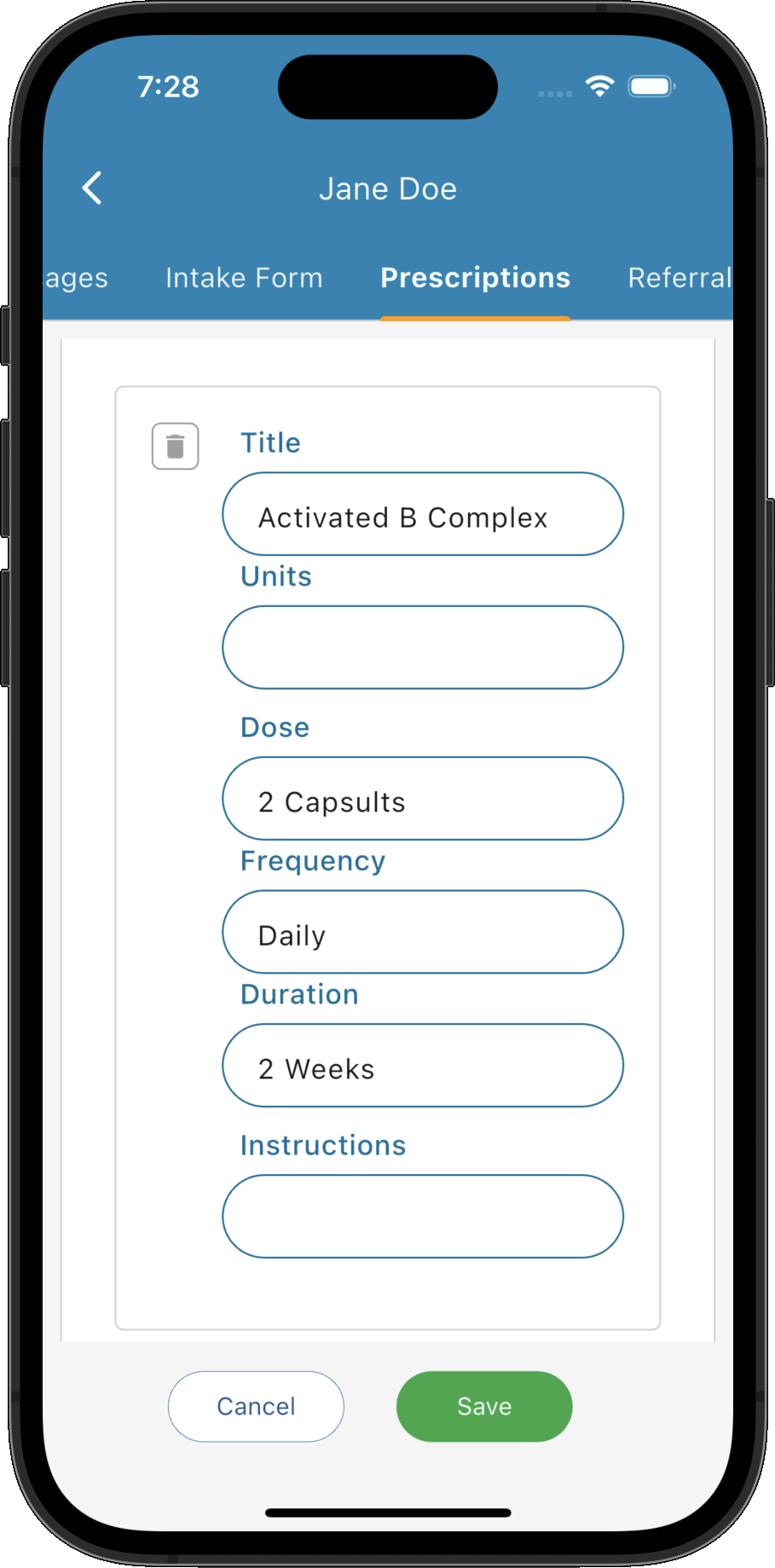
- Record dosage, frequency, duration and dispensing instructions.
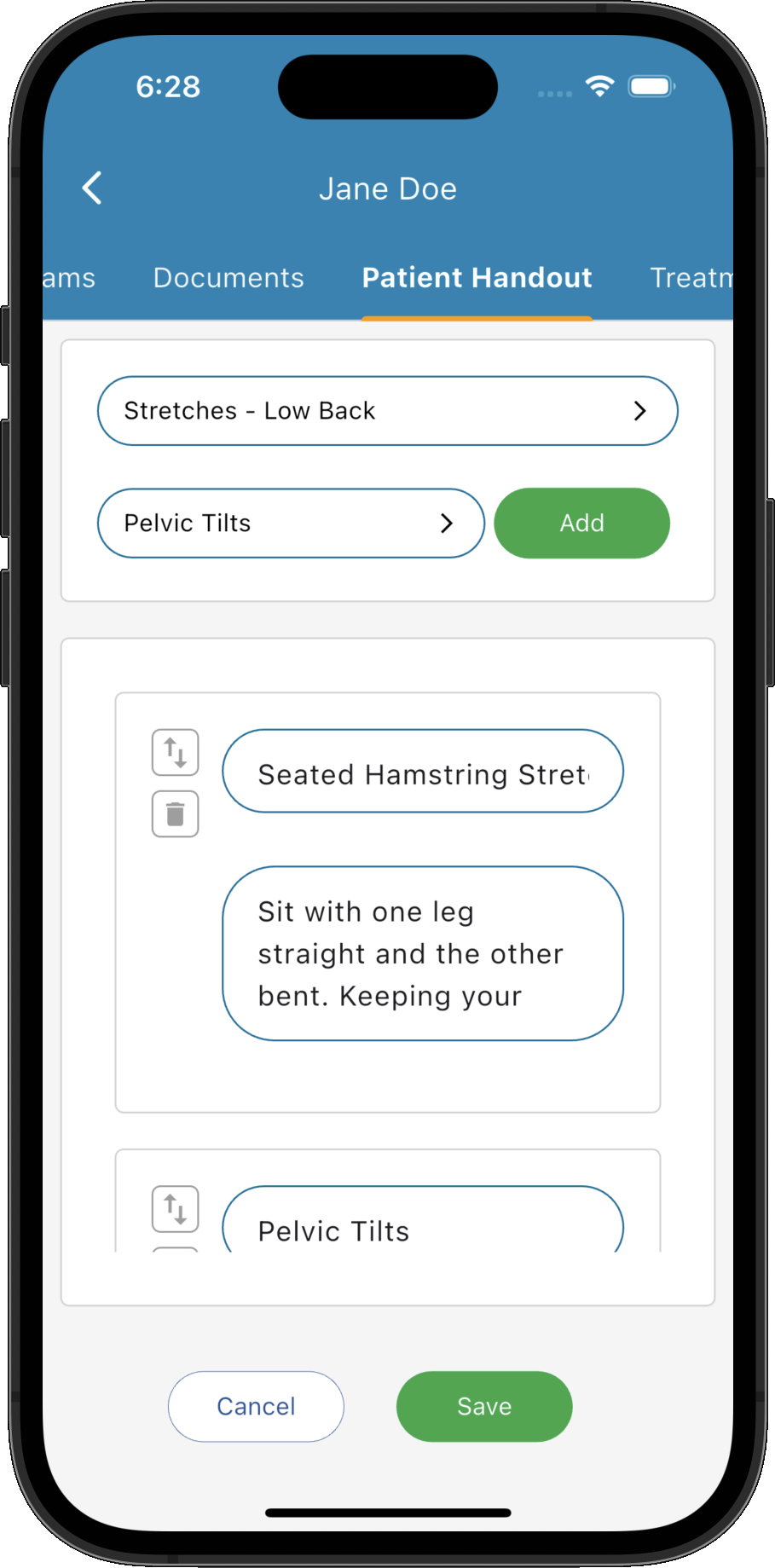
- Re-order prescription items using drag and drop.
- Create invoices directly from the prescription.
- Print, email or save prescriptions as PDF documents.
- Open a dedicated Dispensary View to assist staff when formulating prescriptions.
Overview
The Prescriptions page provides a complete prescription management system integrated with your products, invoicing and patient records.
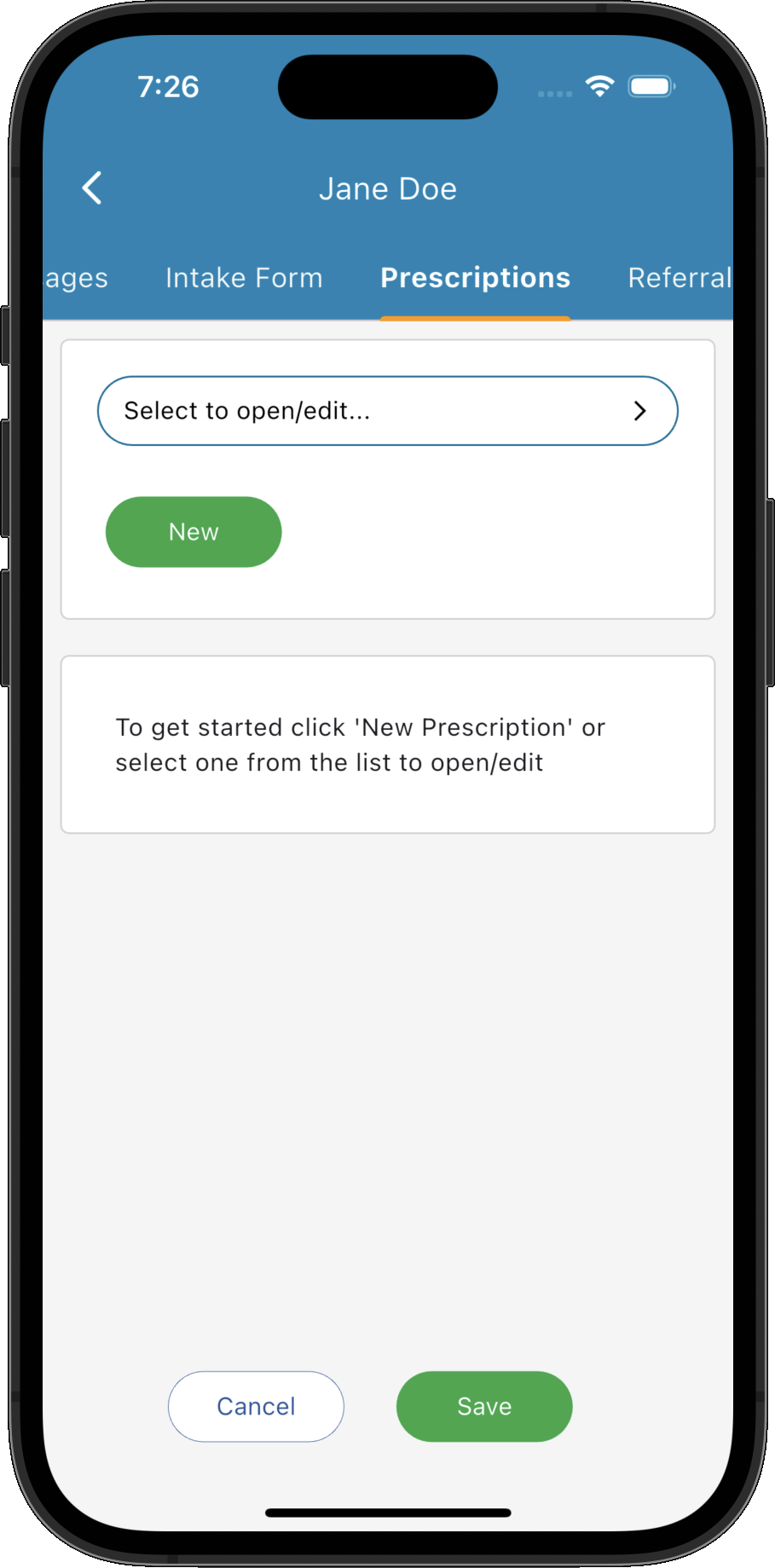
Each patient may have multiple prescriptions. Selecting a prescription from the list opens it for editing, while creating a new prescription starts with an empty prescription ready for products to be added.
Common Tasks
The following common tasks can help you get the most out of this screen:
Create a new prescription
- Click New Prescription.
- Enter any prescription notes if required.
- Click Add Items to begin adding products.
Add products to a prescription
- Click Add Items.
- Search for a product or click Browse.
- Specify the quantity to dispense.
- Click Add or Add & More.
- Complete the dosage, frequency, duration and instructions.
Invoice a prescription
- Open the completed prescription.
- Click Create Invoice.
- The invoice is automatically populated using the prescription items.
Provide the prescription to the patient
- Click Actions.
- Choose Print/Preview, Save As PDF or Email Prescription.
Screen Reference
A detailed description of various screen elements:
Prescription List
Displays every prescription created for the patient. Double-click a prescription to open it for editing. The delete icon removes unwanted prescriptions.
New Prescription
Creates a new blank prescription ready for products to be added.
Add Items
Expands the Add Item panel where products can be searched or browsed from your Invoice Items list.
Add Item Panel
Search for an existing invoice item, browse your catalogue, specify the quantity to dispense and add the product to the prescription.
Selecting Add & More allows multiple products to be added without closing the panel.
Prescription Items
- Product name
- Dose
- Frequency
- Duration
- Patient instructions
Each prescription item records:
Items can be reordered using the drag handle on the left-hand side.
Prescription Notes
General notes entered here apply to the prescription as a whole rather than to an individual product.
Create Invoice
Automatically creates an invoice containing the products listed on the prescription, saving time and ensuring billing matches exactly what has been prescribed.
Actions
- Print/Preview the prescription.
- Save As PDF.
- Email Prescription directly to the patient.
- Dispensary View for preparing the prescription.
Additional options include:
Dispensary View
Displays the prescription in a simplified format designed for dispensary staff, making it easier to formulate and prepare the patient's products.
Save
Saves the prescription and any changes made to it.
Tips
Helpful tips for this screen are below:
Configure products using individual units
For the greatest flexibility, configure your Invoice Items using the smallest practical dispensing unit rather than the complete product.
For example, instead of creating an item called "Activated B Complex - Pack", create an item called "Activated B Complex", set the unit to Capsule and enter the price per capsule.
When adding the item to a prescription, simply specify the number of capsules required. The same quantity is carried through to the generated invoice, ensuring accurate billing without needing separate products for different pack sizes.