
Creating and Editing Report Templates
Create reusable report templates by selecting the information to retrieve, defining how it should be displayed and specifying the default report criteria.
Key Activities
- Select from multiple report types including appointments, invoices, payments, products & services and more.
- Choose exactly which information should appear in the finished report.
- Drag and drop columns and sorting fields into any order.
- Configure default criteria that can automatically be applied whenever the report is run.
- Allow report users to modify the default criteria or lock them to produce consistent reports every time.
Overview
Report templates allow frequently used reports to be saved and reused throughout the practice. Rather than selecting report columns, sorting options and filters every time a report is required, a template stores these settings for future use.
Creating a report template is a simple three-step process. First select the type of information to report on, then choose which columns to display and how they should be sorted, before finally defining the default criteria that will be used whenever the report is run.
Common Tasks
The following common tasks can help you get the most out of this screen:
Create a report template
- Select the type of report to create.
- Complete the template details.
- Select the columns to retrieve.
- Configure the column order and sorting.
- Specify the default report criteria.
- Save the template.
Reorder report columns
- Open the Columns & Sorting section.
- Drag a field using the drag handle.
- Drop it into the required position.
- Save the template.
Create a fixed report
- Configure the required default criteria.
- Disable changes on the Run Report screen.
- Save the template.
Screen Reference
A detailed description of various screen elements:
Step 1 - Select a Report Type
Begin by selecting the information that the report should retrieve. Available report types include appointments, invoices, payments, products & services and many other areas of Practice Master.
Once a report type has been selected, the remainder of the screen automatically updates to display options relevant to that report.
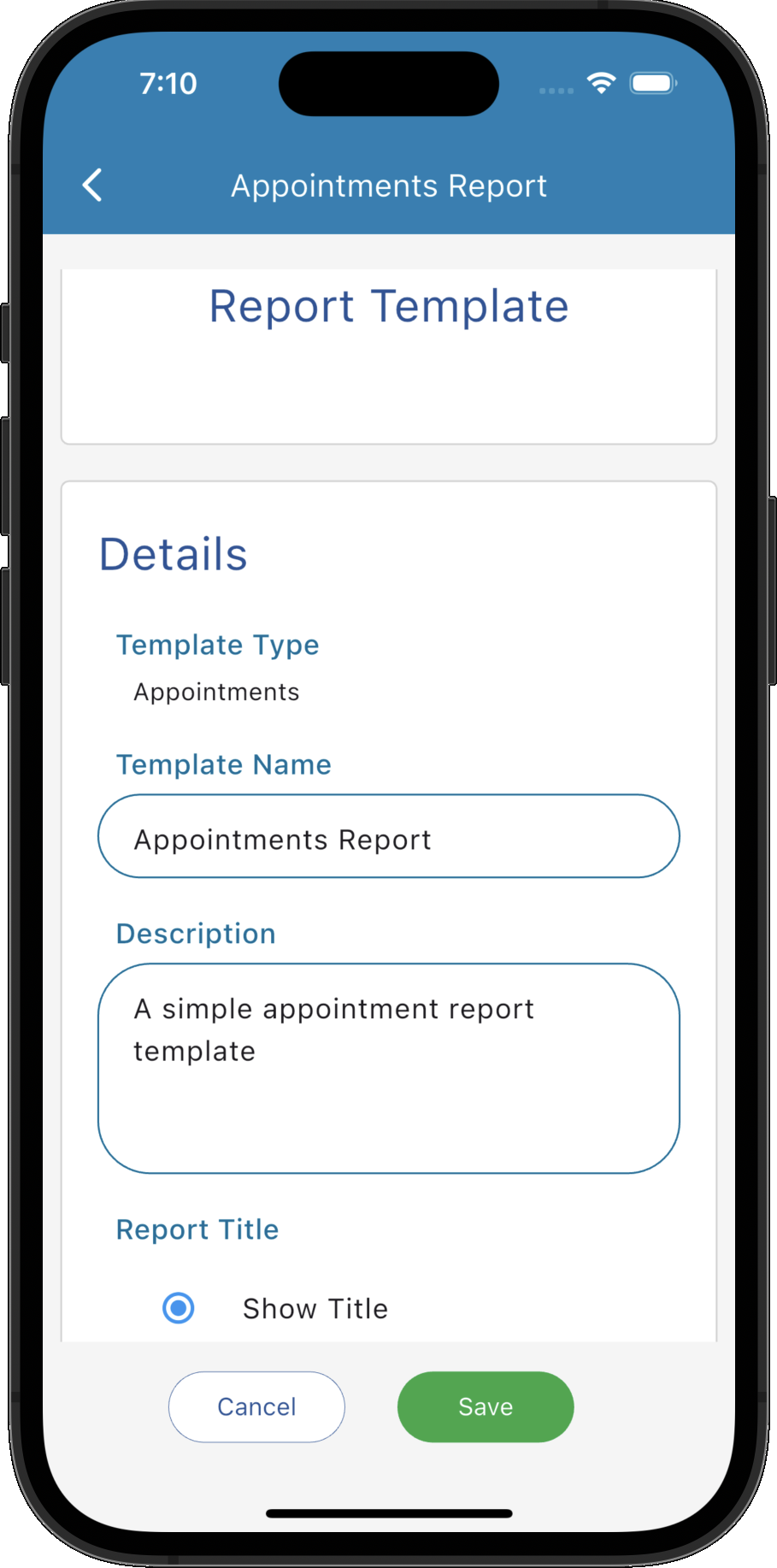
Details
- Template Name - The name displayed in the report list.
- Description - An optional description explaining the purpose of the report.
- Report Title - Choose whether a title should be displayed at the top of the generated report.
The Details section defines the basic information about the report template.
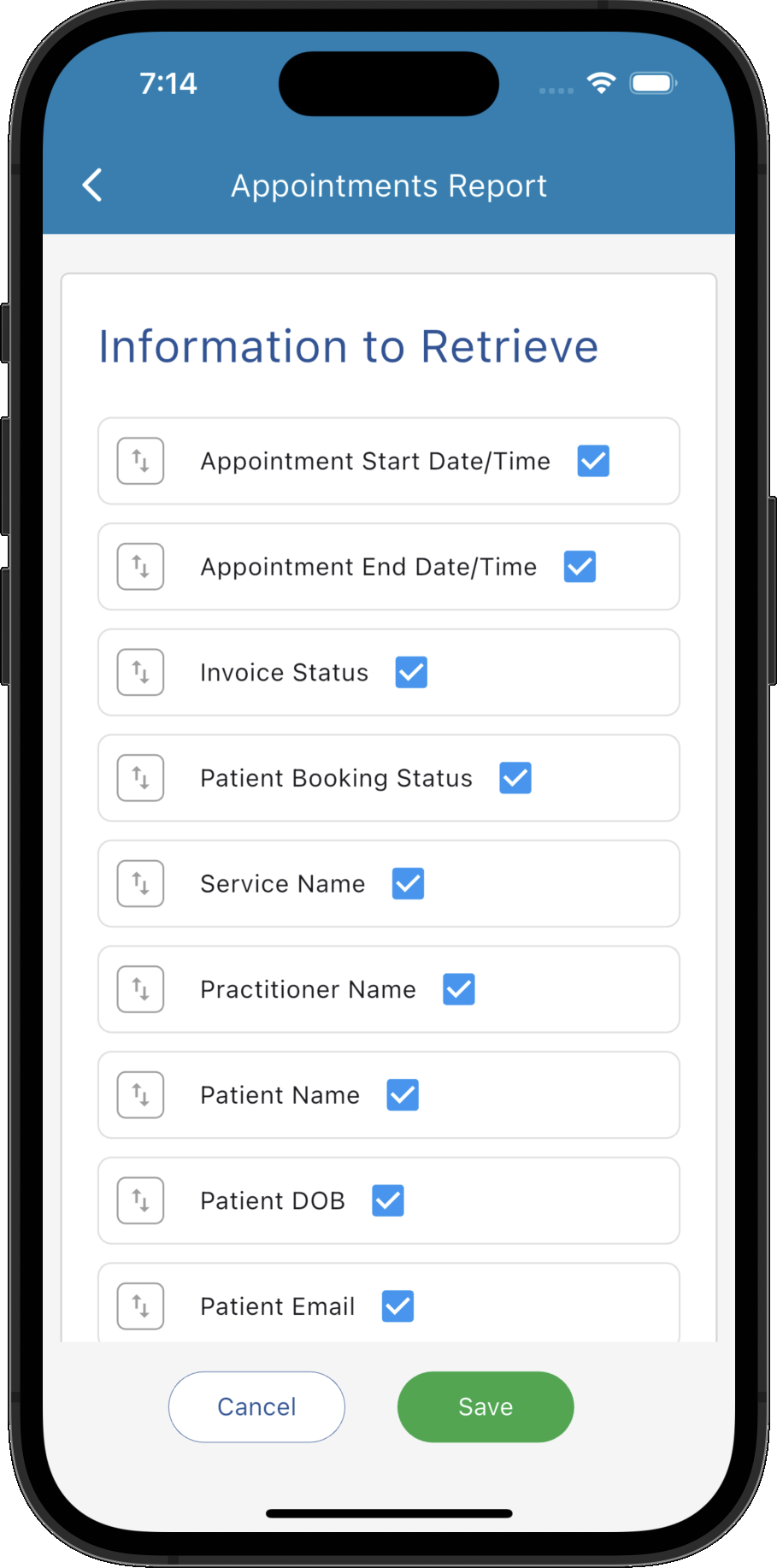
Columns & Sorting
Select the information that should appear in the finished report by enabling the required fields.
The column order determines how information will appear in the report. Sorting fields determine how the results will be organised when the report is generated.
Both the column list and the sorting list support drag-and-drop reordering, allowing complete control over the layout and ordering of the report.
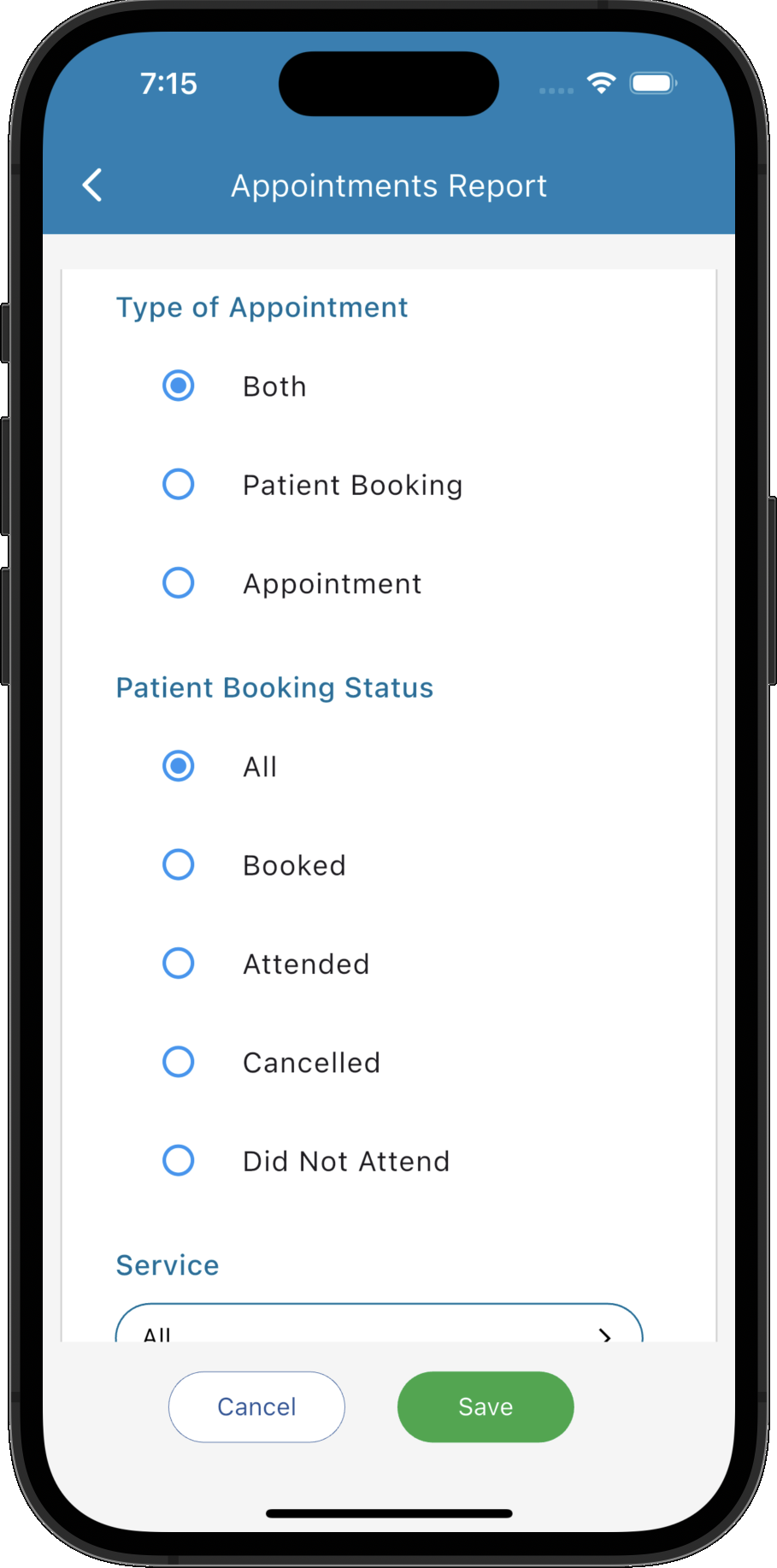
Default Criteria
Default Criteria defines the filters that will automatically be applied whenever the report is run. Depending on the selected report type, criteria may include items such as practitioners, patients, services, invoice status, payment status, booking status or date ranges.
You can choose whether these criteria are displayed on the Run Report screen. If enabled, users can review and modify the defaults before generating the report. If disabled, the report always runs using the stored criteria without prompting for changes.
Tips
Helpful tips for this screen are below:
Use meaningful template names
Give templates descriptive names that clearly identify their purpose. This makes them much easier to locate when the practice has accumulated a large collection of report templates.
Only retrieve the information you need
Selecting fewer columns keeps reports easier to read and can improve performance when working with larger datasets.
Arrange columns in the order users expect
Because columns can be reordered using drag and drop, organise important information such as dates, patient names and practitioners near the beginning of the report where it can be scanned quickly.
Use default criteria to save time
If a report is always run with the same settings, such as a specific practitioner, service or invoice status, configure these as default criteria. This eliminates repetitive setup and ensures the report is generated consistently every time.
Allow criteria changes only when necessary
Reports that are used by multiple staff members often benefit from allowing criteria to be modified before running. For management or compliance reports that must always produce consistent results, consider locking the criteria so the report always uses the saved defaults.