
Patient Email Correspondence
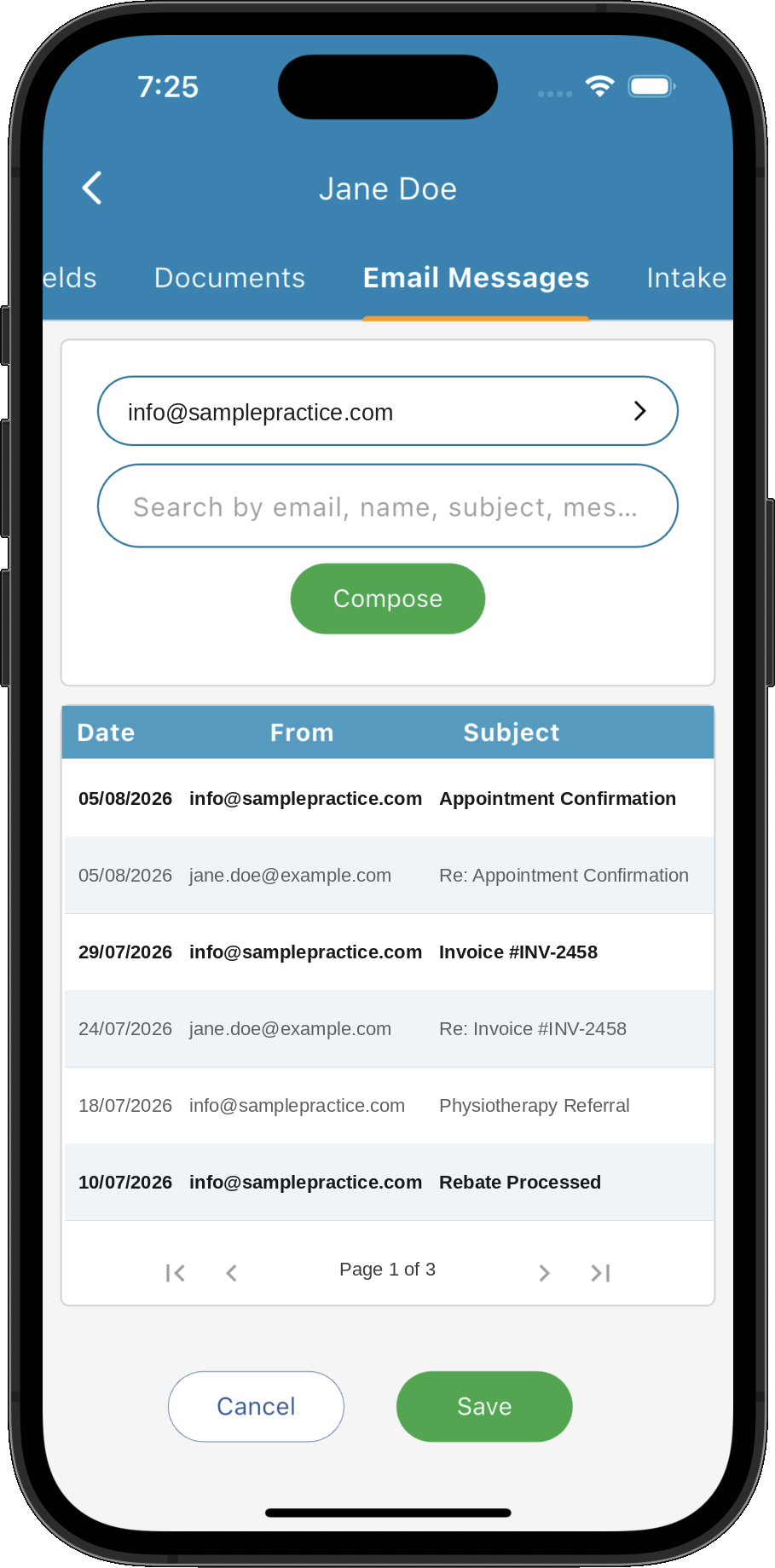
The Email Correspondence screen displays every email sent to and received from a patient, providing a complete chronological communication history in one place.
Key Activities
- View every email sent to and received from the patient in chronological order.
- Automatically combines conversations across all email addresses recorded for the patient.
- Quickly search by sender, recipient, subject or message content.
- Compose new emails or continue existing conversations directly from the patient record.
- Provides a complete communication history alongside the patient's clinical records.
Overview
The Email Correspondence screen brings together every email conversation relating to a patient into a single timeline. Both incoming and outgoing messages are displayed in date order, allowing you to quickly review previous conversations without searching through individual mailboxes.
Practice Master automatically groups messages across all email addresses recorded for the patient. Whether the patient has a home, work or alternative email address, every message becomes part of the same conversation history, giving practitioners complete context whenever they communicate with the patient.
From this screen you can search correspondence, compose new emails, reply to existing conversations and forward messages while maintaining a permanent communication history within the patient's record.
Having every conversation stored alongside the patient's clinical information ensures important communications remain available to all authorised practitioners and administrative staff whenever they are needed.
Common Tasks
The following common tasks can help you get the most out of this screen:
Reviewing Patient Correspondence
- Open the patient's Email Messages tab.
- Browse messages in chronological order.
- Use the search box to quickly locate previous conversations.
- Double-click a message to open and read the complete email.
Sending an Email
- Click Compose.
- Select the required recipient if multiple email addresses exist.
- Create your email or choose an email template.
- Send the message.
- The email is automatically added to the patient's correspondence history.
Continuing a Conversation
- Locate the email you wish to respond to.
- Use the Reply, Reply All or Forward actions.
- Compose your response.
- Send the email.
- The complete conversation remains linked together within the patient's record.
Screen Reference
A detailed description of various screen elements:
Mailbox Selection
If your practice has multiple email accounts, use the mailbox selector to choose which account's correspondence you wish to view or send emails from.
Search
The search box filters the correspondence list by sender, recipient, subject or message content, making it easy to locate previous communications.
Correspondence List
Every email is displayed with its date, time, sender, subject and a preview of the message body. Messages are shown in chronological order to provide a complete conversation history.
Message Actions
Quick action buttons allow you to reply, reply to all recipients, forward messages or delete emails where appropriate.
Compose Button
Creates a new email directly from the patient's record. Patient details can be inserted automatically, and documents, invoices or other files may be attached if required.
Tips
Helpful tips for this screen are below:
See the whole conversation
Because every email is stored in date order, you can quickly understand previous discussions before contacting the patient again, reducing misunderstandings and duplicated communication.
Multiple email addresses are supported
Patients often use more than one email address over time. Practice Master automatically combines correspondence from all email addresses stored against the patient's contact details, providing one complete communication history.
Search before contacting the patient
A quick search can often locate previous advice, appointment discussions or billing conversations, saving time and ensuring consistent communication.
Everything stays with the patient record
Unlike traditional email programs where messages remain in individual mailboxes, correspondence is linked directly to the patient's record, making it available whenever authorised staff need it.
Use email templates
Frequently sent messages such as appointment confirmations, follow-up instructions or administrative correspondence can be created from templates, ensuring consistency while significantly reducing typing.