
Creating and Editing Appointments
Create and edit patient bookings, block out appointments and recurring appointments from a single appointment editor.
Key Activities
- Create either a Patient Booking or a Block Out appointment.
- Select an existing patient or create a new patient without leaving the booking screen.
- Assign the appointment to any practitioner.
- Select the service to automatically apply its configured duration, colour and other defaults.
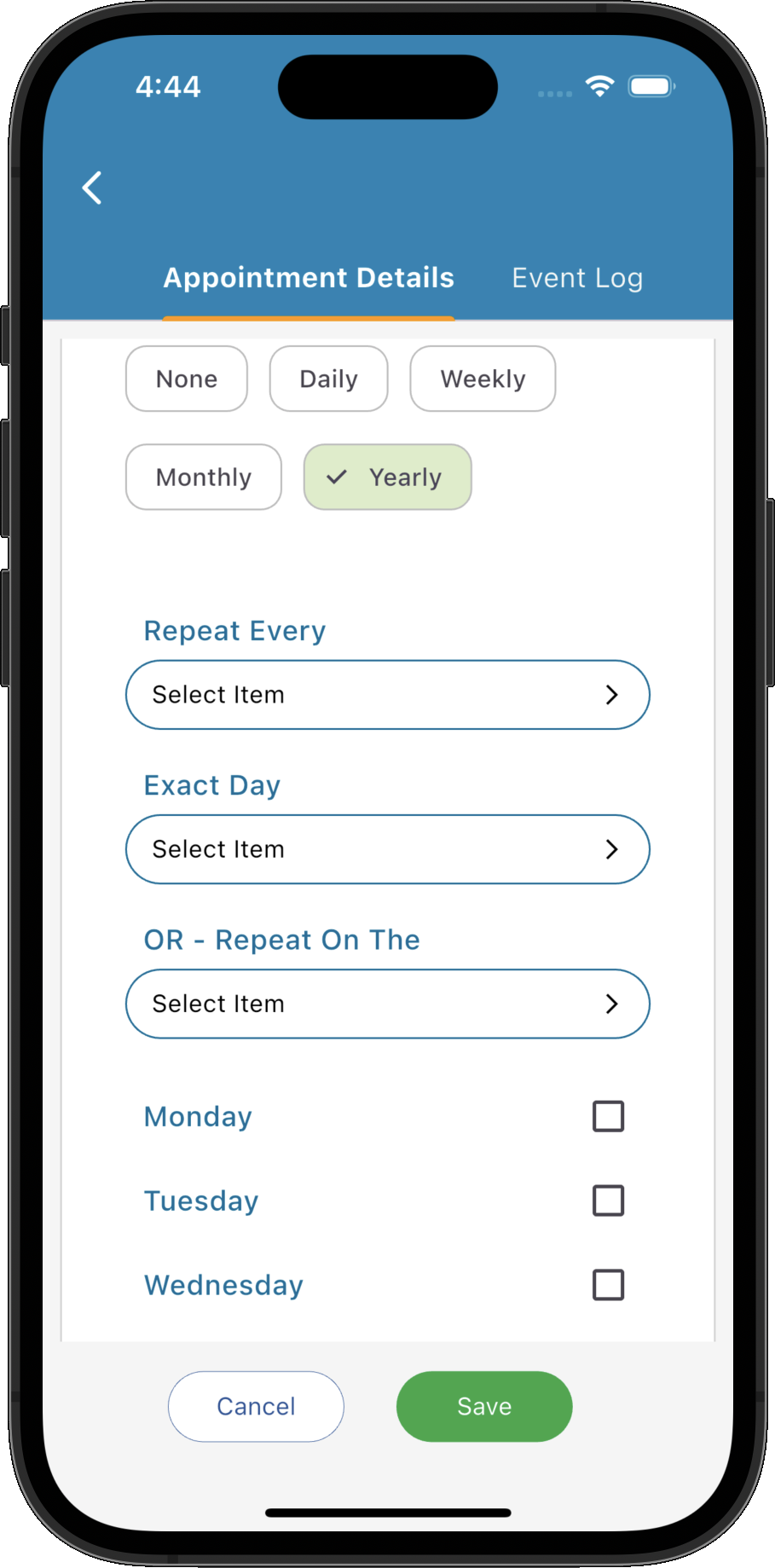
- Create recurring appointments using flexible daily, weekly, monthly or yearly schedules.
- View a complete audit history from the Event Log.
Overview
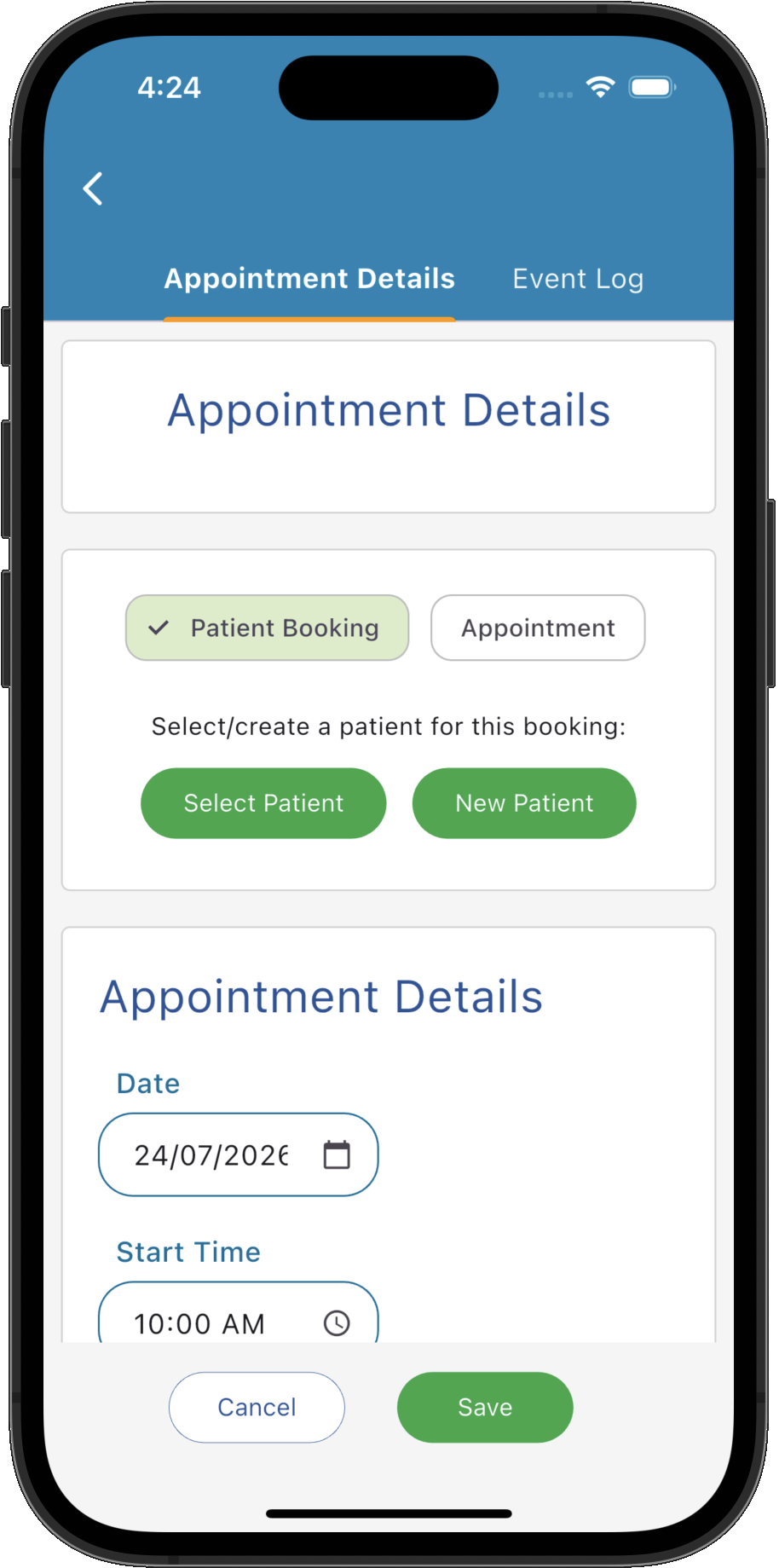
The Appointment Details screen is used to create and edit all calendar appointments. Appointments may either be Patient Bookings, which are linked to a patient, or standard Appointments (Block Outs) which reserve time in the calendar without being associated with a patient.
Appointment details such as the practitioner, service, colour, recurrence pattern and notes can all be configured from this screen. Every change made to an appointment is also recorded in the Event Log, providing a complete audit history.
Common Tasks
The following common tasks can help you get the most out of this screen:
Create a patient booking
- Select Patient Booking.
- Click Select Patient to choose an existing patient, or New Patient to quickly create one.
- Select the practitioner and service.
- Adjust the appointment details if required.
- Save the appointment.
Create a block out appointment
- Select Appointment.
- Enter a title.
- Select the practitioner.
- Choose an appropriate colour.
- Save the appointment.
Create a recurring appointment
- Open the Recurrence section.
- Select Daily, Weekly, Monthly or Yearly.
- Configure the repeat pattern.
- Specify an optional end date.
- Save the appointment.
Screen Reference
A detailed description of various screen elements:
Patient Booking
Patient Bookings are linked directly to a patient record and provide access to invoicing, patient notes, reminders, intake forms and all other patient-related workflows.
Existing patients can be selected, or a new patient can be created immediately using the Quick Create screen without leaving the appointment editor.
Appointment
Standard Appointments (Block Outs) reserve time in the practitioner's calendar without being linked to a patient. These are commonly used for meetings, lunch breaks, annual leave, administration time or other unavailable periods.
Appointment Details
Configure the appointment date, start time, finish time, practitioner, service, colour, title and summary.
Services automatically apply their configured defaults such as duration and calendar colour, helping maintain consistency throughout the practice.
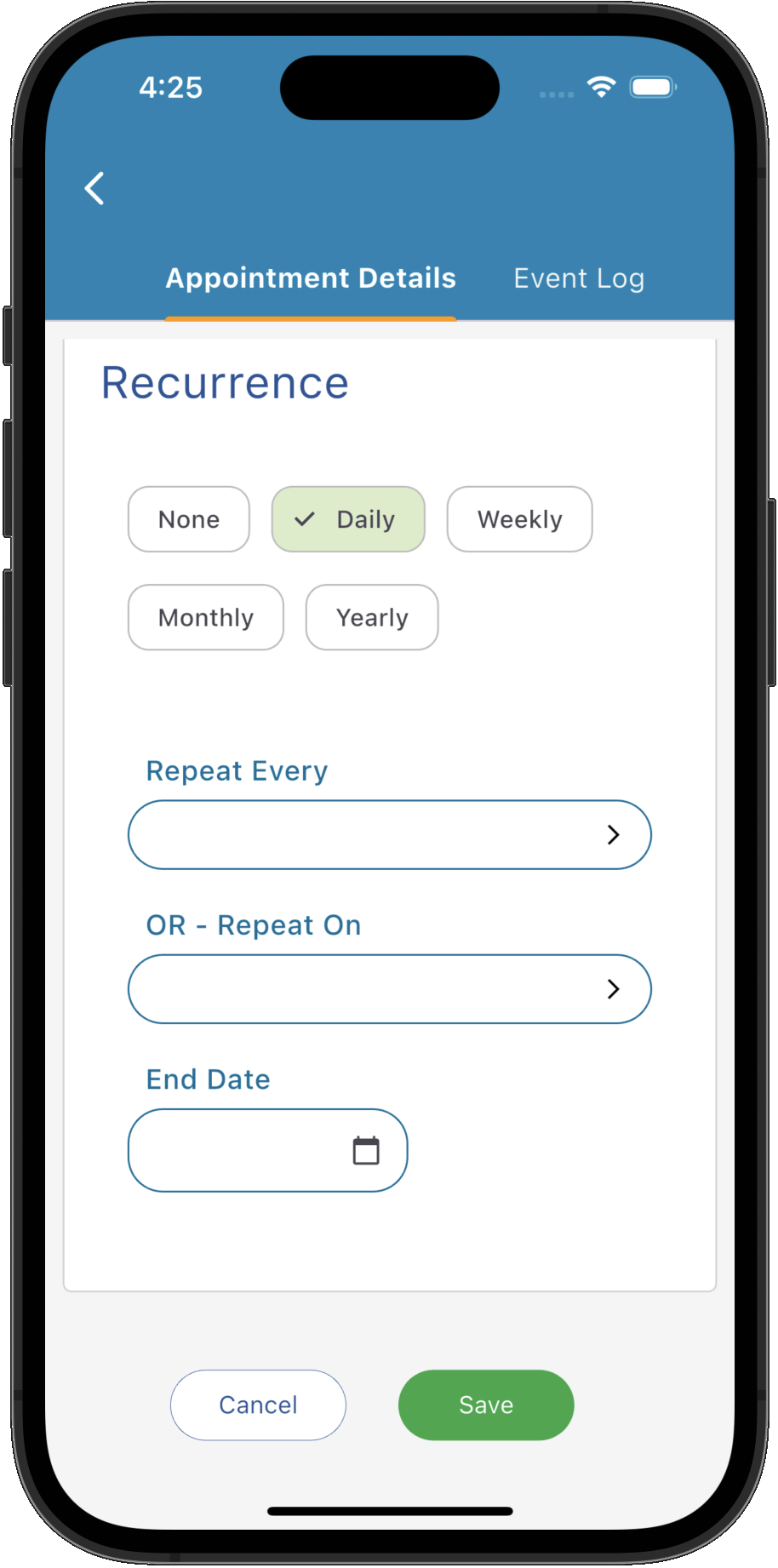
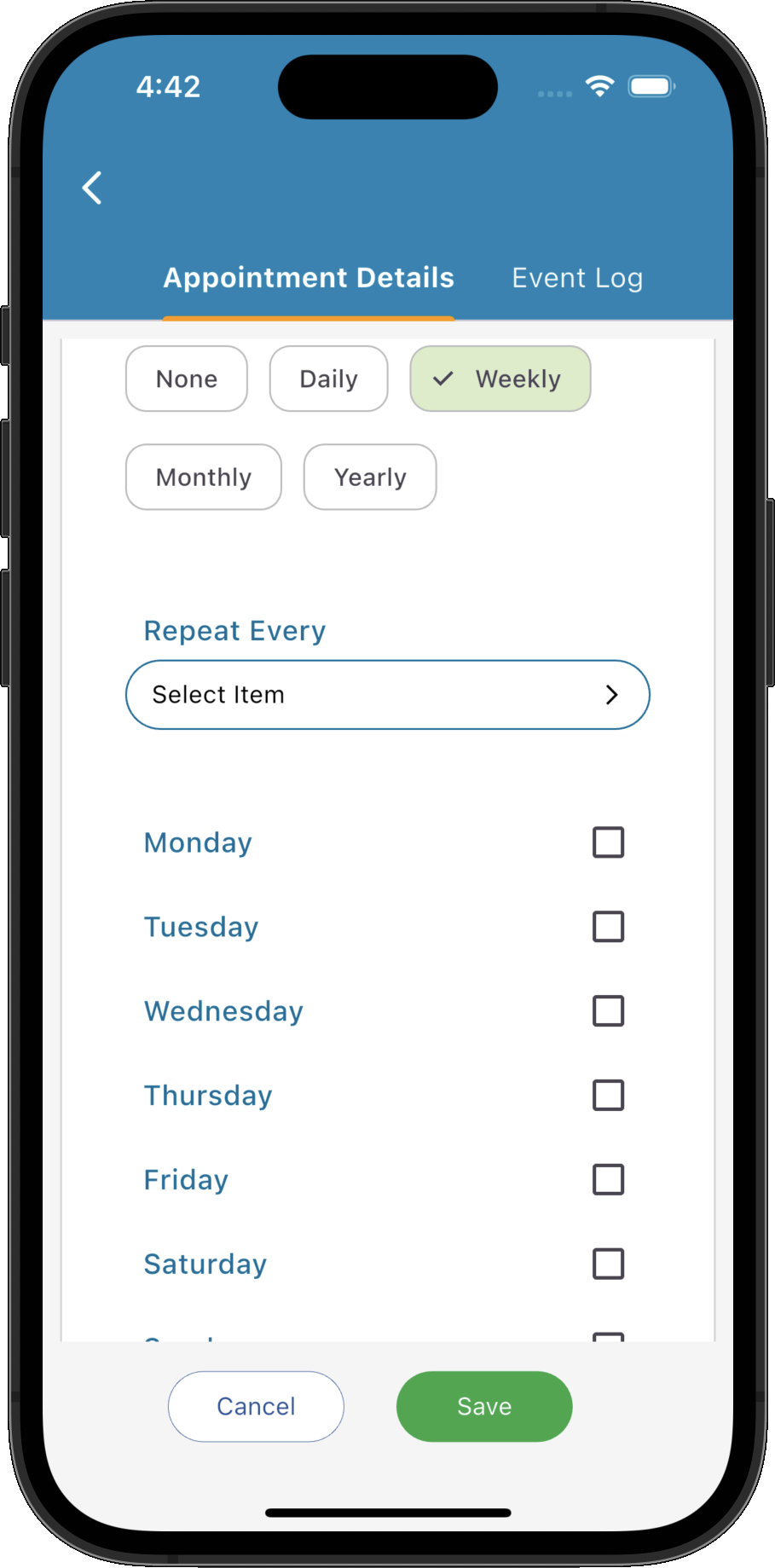
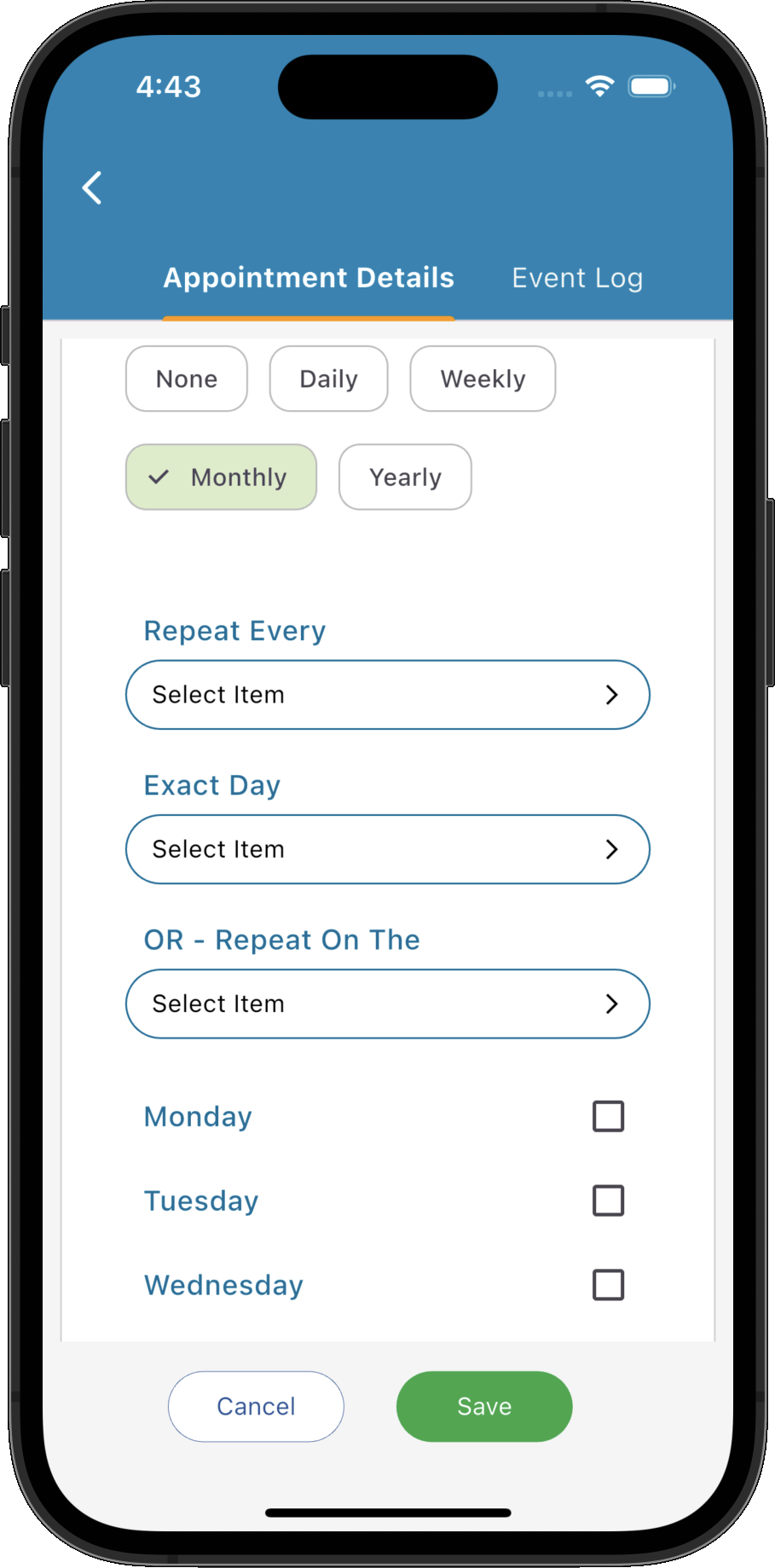
Recurrence
- Daily - Repeat every specified number of days.
- Weekly - Repeat on one or more selected weekdays.
- Monthly - Repeat on a specific day of the month or a particular weekday (for example, the second Tuesday).
- Yearly - Repeat annually using either a fixed calendar date or a relative date pattern.
Appointments may repeat using flexible recurrence rules.
Every recurrence pattern can include an optional end date.
Event Log
The Event Log maintains a complete history of the appointment throughout its lifecycle.
Events include appointment creation, edits, status changes and other important actions together with the user who performed the action and when it occurred, providing a full audit trail.
Tips
Helpful tips for this screen are below:
Use Quick Create for new patients
If a new patient calls to make their first appointment, use New Patient directly from the booking screen. This avoids leaving the calendar and allows the appointment to be completed in a single workflow.
Use Services wherever possible
Selecting a service automatically applies its configured defaults, reducing data entry and ensuring appointments remain consistent between practitioners.
Use recurring appointments carefully
Recurring appointments are ideal for ongoing treatment plans. If a patient's schedule changes, individual appointments can still be modified without recreating the entire series.
Review the Event Log when investigating changes
The Event Log provides a detailed audit trail showing exactly what changed, when it changed and who made the change, making it invaluable when investigating scheduling issues.