
Patient Documents & Letters
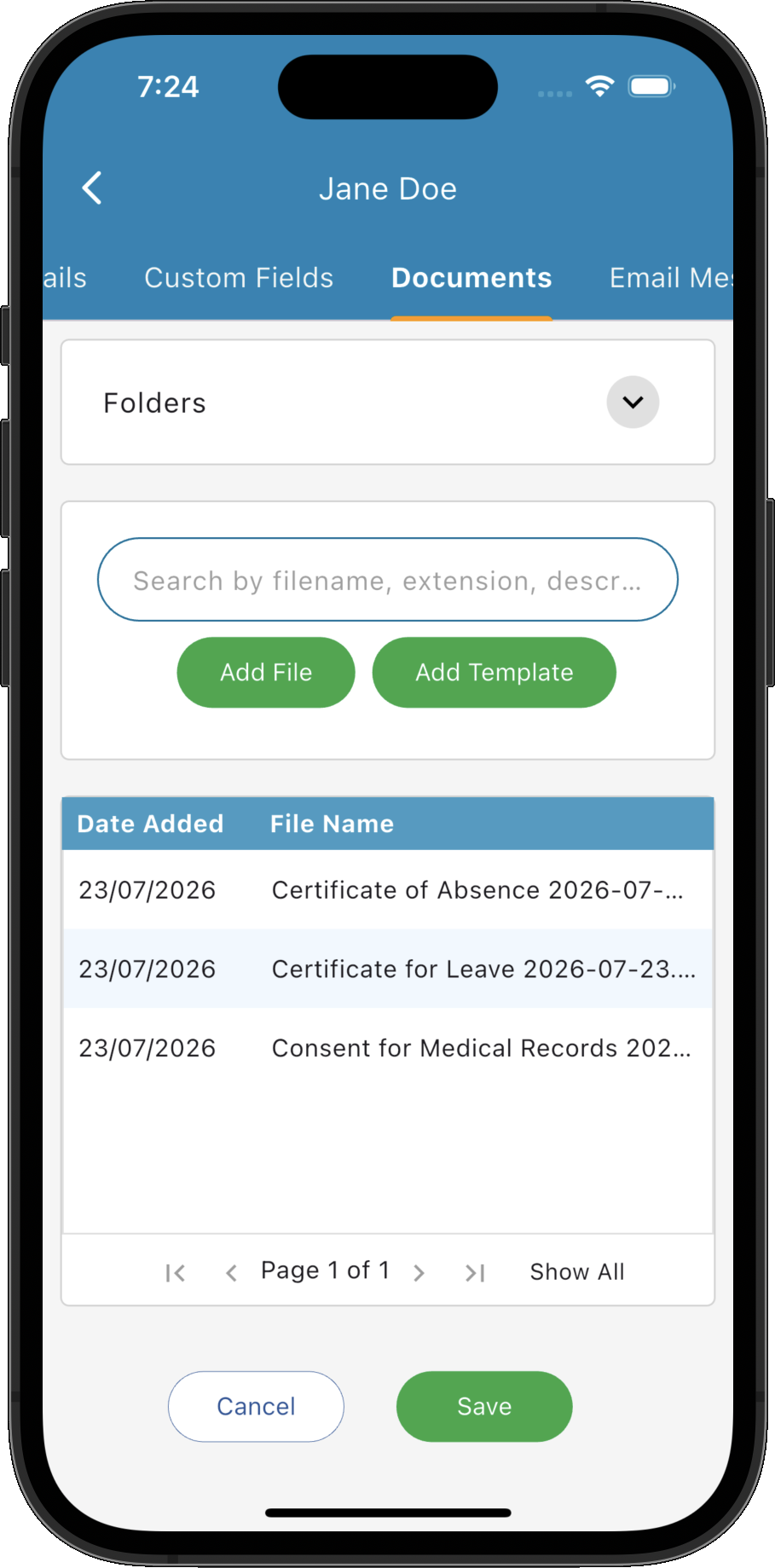
Organise, create and manage documents for the selected patient using a structured folder system shared across your practice.
Key Activities
- Organise patient documents into folders using a practice-wide folder structure.
- Add files directly from your computer.
- Create new documents from pre-defined templates.
- Automatically populate Word templates with patient, practice and practitioner information.
- Move files between folders using drag and drop.
- Select and move multiple documents at once.
Overview
The Documents & Letters tab stores every document associated with the selected patient. Documents are organised into folders to make them easy to locate and maintain throughout the patient's care.
Folder structures are configured once in the Administration area and automatically apply to every patient. Each patient has their own private copy of this folder structure, allowing documents to be organised consistently across the entire practice.
Common Tasks
The following common tasks can help you get the most out of this screen:
Add an existing document
- Select the destination folder.
- Click Add File.
- Browse to the required file.
- Select the file to add it to the patient's record.
Create a document from a template
- Select the destination folder.
- Click Add Template.
- Select one of your document templates.
- If the template is a Microsoft Word document, Practice Master automatically fills any bindable fields using patient, practice and practitioner information.
Move documents between folders
- Select one or more documents.
- Drag them onto another folder in the folder tree.
- The selected documents are moved into the new folder.
Locate a document
- Select the appropriate folder.
- Use the search box to filter by filename, extension or description.
Screen Reference
A detailed description of various screen elements:
Folder Tree
Displays the patient's document folders.
Folder structures are configured in the Administration area and are shared by every patient. Each patient maintains their own private documents within this common folder structure.
The folder panel can be collapsed to provide additional workspace.
Search Box
Filters the selected folder by filename, file extension or document description.
Document List
Displays all documents contained within the currently selected folder, together with their date added, issue date, filename and description.
Multiple documents can be selected simultaneously for drag and drop operations.
Add File
Imports an existing document from your computer into the currently selected folder.
Any common document type can be stored within the patient's record for future reference.
Add Template
Creates a new document using one of your predefined document templates.
Microsoft Word templates support automatic field binding, allowing Practice Master to populate patient details, practitioner information and practice information directly into the generated document.
Drag and Drop
Documents can be reorganised simply by dragging them into another folder.
Multiple selected documents can be moved together, making it easy to reorganise large collections of files.
Document Actions
- Email the document directly to the patient.
- Email the document to the patient's General Practitioner.
- Attach the document to a new email.
- Create a copy of the document in the current folder.
- Save the document to your computer.
- Convert Microsoft Word documents to PDF.
- Convert to PDF and automatically email or save the resulting PDF.
Right-clicking a document provides additional actions including:
Edit
Opens the selected document so its details can be updated.
Delete
Removes the selected document from the patient's record.
Save
Saves any changes made to the Patient Record.
Cancel
Closes the Patient Record without saving any unsaved changes.