
Custom Forms
Patient Note Templates allow you to create fully customised clinical forms for every practitioner, discipline, treatment type and workflow within your practice.
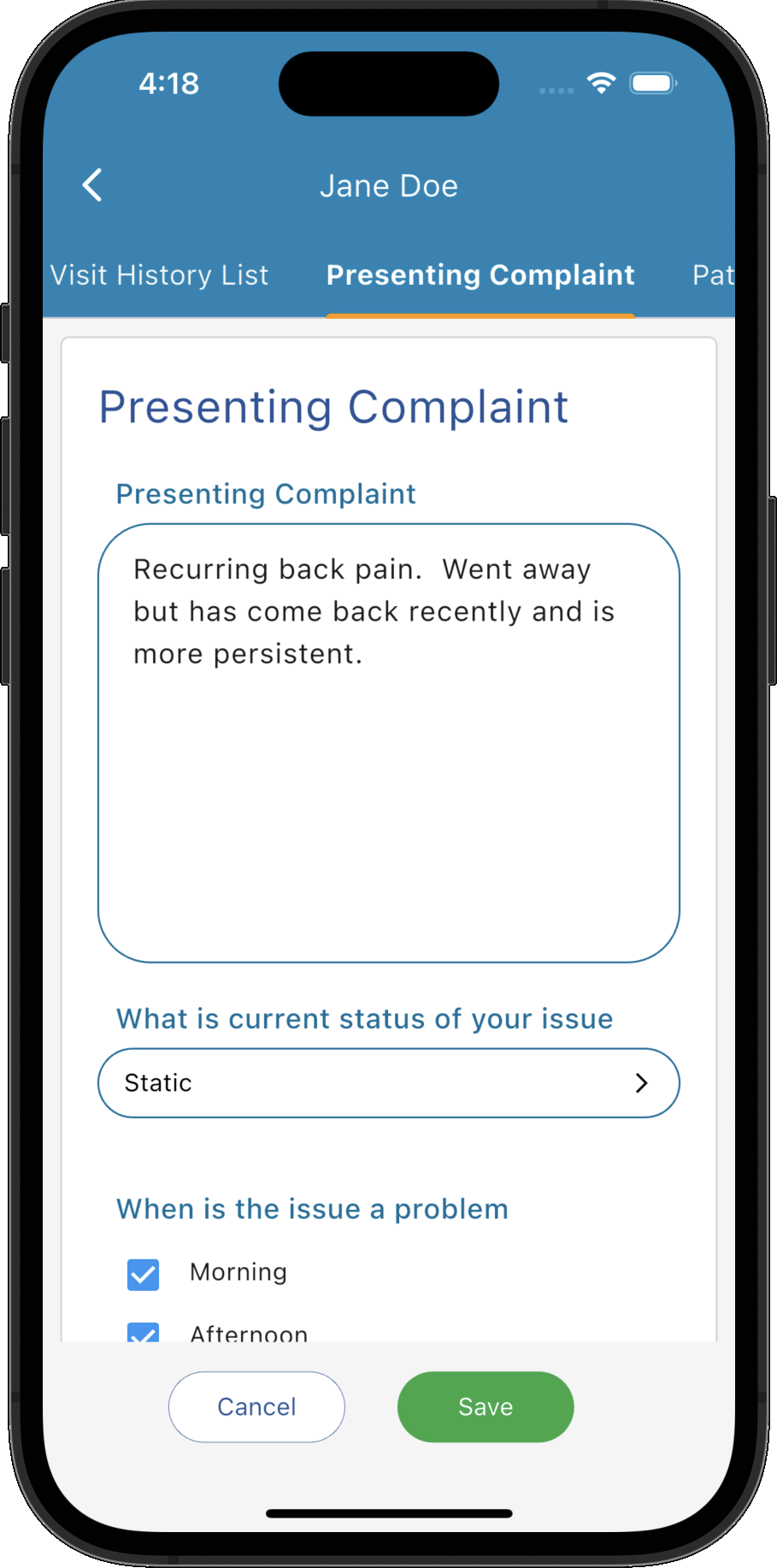
- Create an unlimited number of patient note templates.
- Organise notes into logical tabs for easier navigation.
- Support many different question and answer types.
- Create discipline-specific and treatment-specific templates.
- Designed to minimise typing while maintaining detailed clinical records.
Overview
Practice Master includes a powerful custom form designer that allows you to build patient notes exactly the way your practice works.
Rather than forcing every practitioner to use the same note format, each template can be customised to suit different professions, treatment styles and clinical workflows. Whether you are an osteopath, physiotherapist, chiropractor, naturopath, massage therapist, psychologist or another allied health professional, your patient notes can be designed specifically for your needs.
Each patient note is organised into tabs, such as Presenting Complaint, Examination & Diagnosis, Treatment & Advice, or any other sections you choose to create. Within each tab you can add an unlimited number of questions using a variety of answer types.
Patient note templates are completely reusable and can be assigned to appointments as required, allowing different practitioners or appointment types to use entirely different documentation while remaining part of the same integrated patient record.
Common Tasks
The following common tasks can help you get the most out of this screen:
Completing Patient Notes
- Select each tab from the navigation panel.
- Complete the questions displayed on the page.
- Move between tabs as required.
- Save your progress at any time.
- Mark the notes as Complete once the consultation has been finalised.
Creating Different Note Templates
- Create separate templates for different professions.
- Create specialised templates for different appointment types.
- Use different templates for adult, child or pregnancy consultations.
- Tailor questions to suit your own clinical workflow.
Screen Reference
A detailed description of various screen elements:
Patient Information
The top of the screen displays the patient's name together with the appointment date and time, making it easy to identify the consultation currently being documented.
Tab Navigation
Patient notes are organised into tabs displayed down the left-hand side of the screen. Each tab groups related information together, allowing long consultations to remain easy to navigate.
Questions and Answers
Each tab contains one or more questions. Depending on how the template has been designed, questions may require typed responses, selections from custom lists, multiple choice answers, tick boxes, dates, numbers or other specialised input controls.
Navigation Buttons
Save your progress as you work, close the notes when required, mark the consultation as completed, or open the notes in Side-by-Side mode for easier reference during treatment.
Tips
Helpful tips for this screen are below:
Create templates for each discipline
Most practices benefit from creating separate templates for each modality. For example, osteopathy, physiotherapy, naturopathy and massage therapy can each have their own terminology, assessment forms and treatment workflows.
Create specialised templates
Templates are not limited to professions. Many practices create specialised note templates for pregnancy, paediatrics, sports injuries, workers compensation, rehabilitation programs or other areas of interest.
Use custom lists to save time
Frequently used responses can be placed into custom lists or multiple choice questions, allowing practitioners to complete notes much faster while maintaining consistency across the practice.
Keep related questions together
Organise questions into logical tabs such as history, examination, diagnosis, treatment and advice. Smaller sections are easier to complete than one very long form.
Templates can evolve
Your clinical documentation does not need to remain static. As your practice grows, templates can be updated and refined to reflect new procedures, treatment techniques and regulatory requirements.