
Creating and Editing Invoices
Create and manage invoices, add products or services and record payments from a single screen.
Key Activities
- Create invoices for patients, contacts or other recipients.
- Add products and services using searchable invoice items.
- Record one or more payments against an invoice.
- Accept both manual and card payments.
- Draft invoices can be saved without appearing in reports or integrations.
- Invoice totals and balances update automatically as items and payments are added.
Overview
The Invoice screen is used to create, edit and manage invoices issued by your practice. Each invoice consists of three main sections: Invoice Details, Invoice Items and Payments.
Products and services can be added individually, while payments may be recorded over time until the invoice is paid in full. The invoice total, balance owing and payment status are automatically calculated as changes are made.
Common Tasks
The following common tasks can help you get the most out of this screen:
Create a new invoice
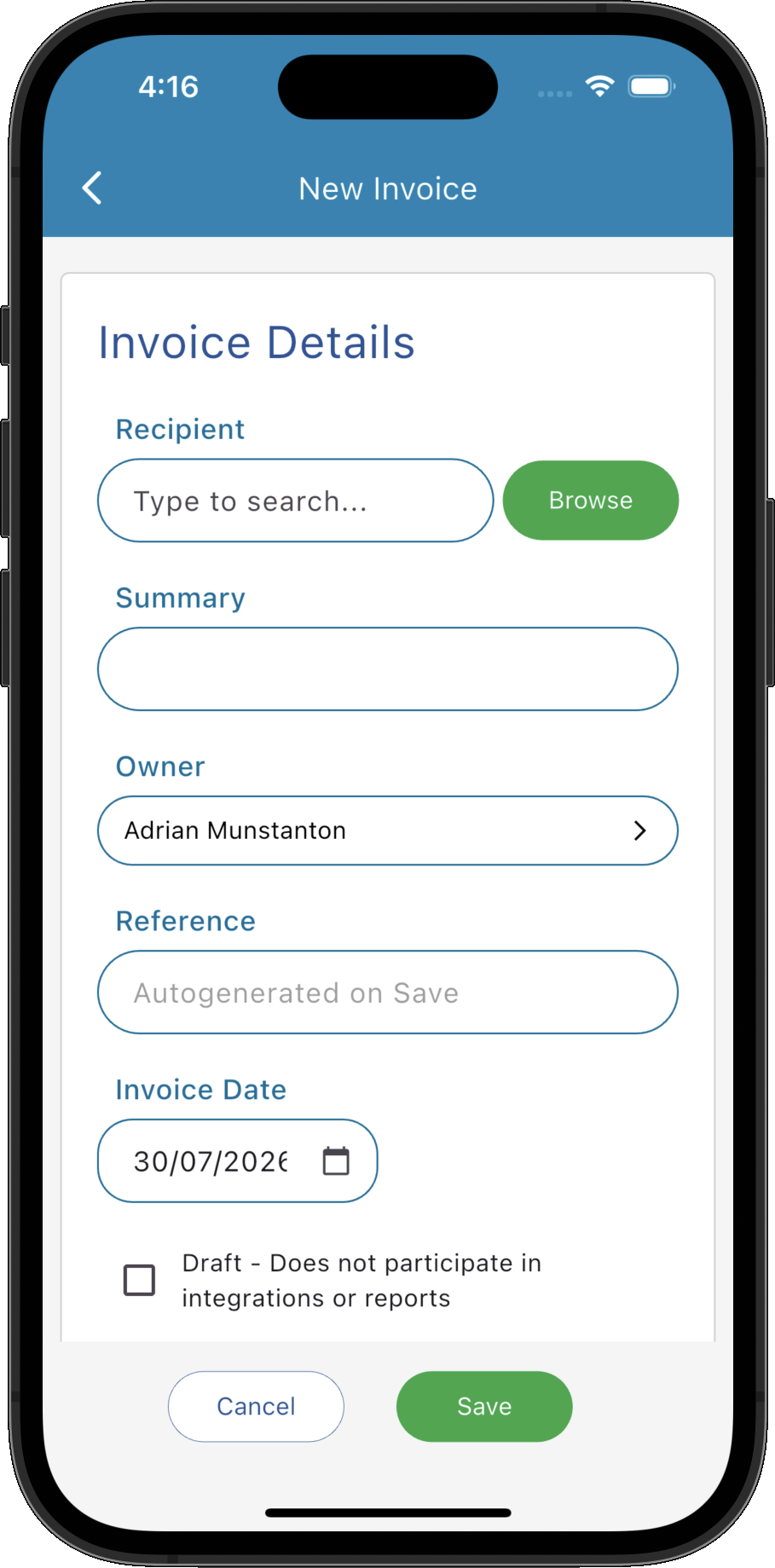
- Select the invoice recipient.
- Enter a summary if required.
- Add one or more invoice items.
- Save the invoice.
Add an invoice item
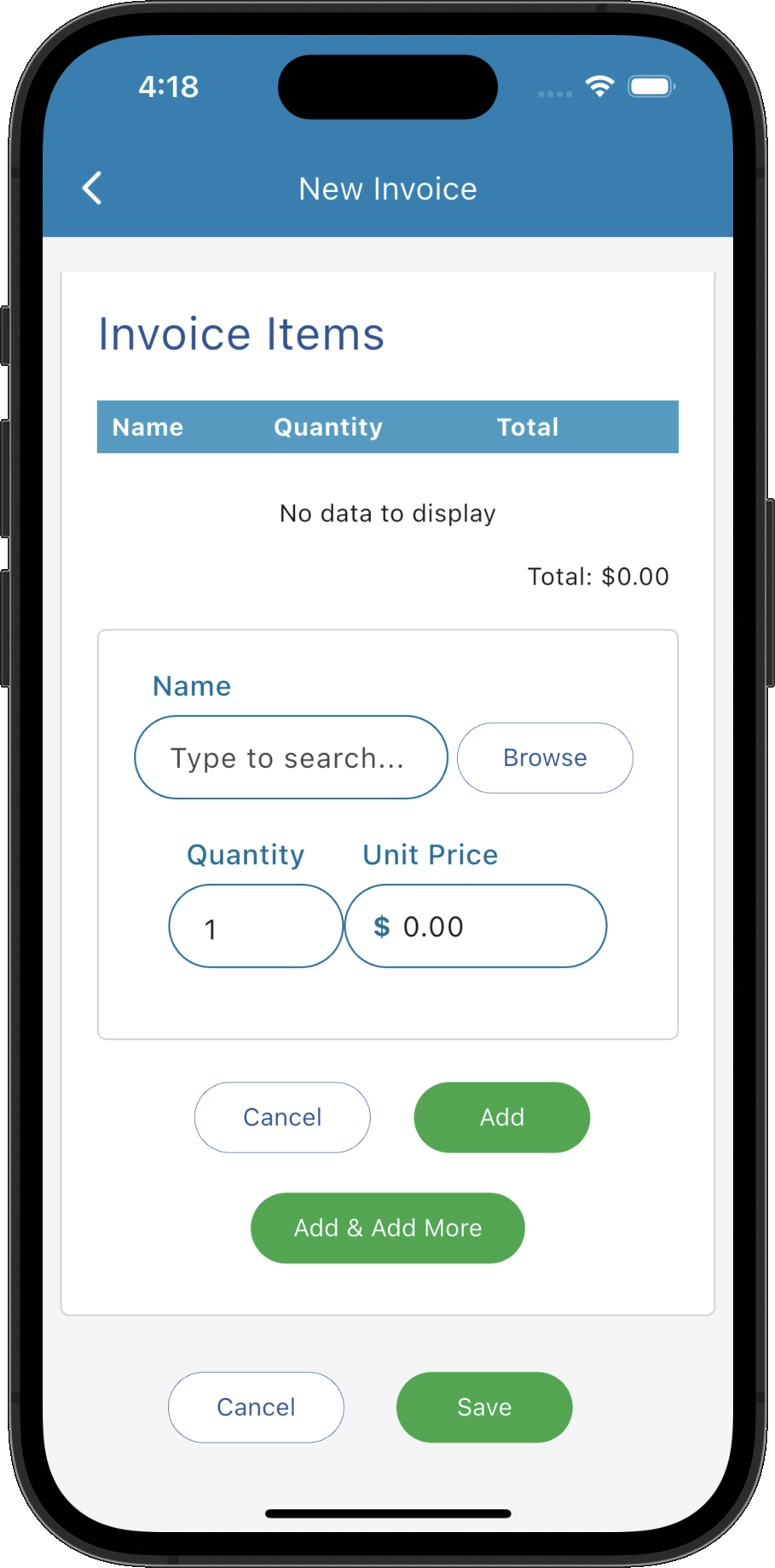
- Click Add New beneath the Invoice Items list.
- Search for a product or service.
- Adjust the quantity or price if required.
- Click Add or Add & Add More.
Record a payment
- Choose Manual or Card.
- Enter the payment details.
- Click Add.
- The remaining balance updates automatically.
Save an invoice as a draft
- Tick the Draft checkbox.
- Click Save.
- The invoice will not participate in reports or integrations until the Draft option is cleared OR a payment is made against the invoice.
Screen Reference
A detailed description of various screen elements:
Recipient
Select the patient, contact or other recipient who will receive the invoice.
Owner
Specifies which practitioner or staff member owns the invoice.
Invoice Date
The date the invoice was issued.
Summary
A short description that appears when browsing invoices and on printed copies.
Reference
Each invoice is assigned a unique reference number when it is first saved.
Draft
Draft invoices can be saved while still being prepared. Draft invoices do not participate in reports, accounting calculations or external integrations until the Draft option is cleared.
Invoice Items
- Search for an existing product or service.
- Browse all available invoice items.
- Adjust the quantity.
- Override the unit price if required.
- Add a single item or continue adding multiple items.
Lists every product or service being charged on the invoice together with quantities, pricing, tax and line totals.
Clicking Add New expands the item entry panel where you can:
The invoice total updates automatically as items are added or removed.
Payments
- Manual - Records payments such as cash, EFTPOS, cheque, bank transfer or payments processed outside Practice Master.
- Card - Processes electronic card payments using your configured payment gateway.
Displays every payment recorded against the invoice together with the payment method, payment date and amount.
Two payment methods are available:
Manual Payments
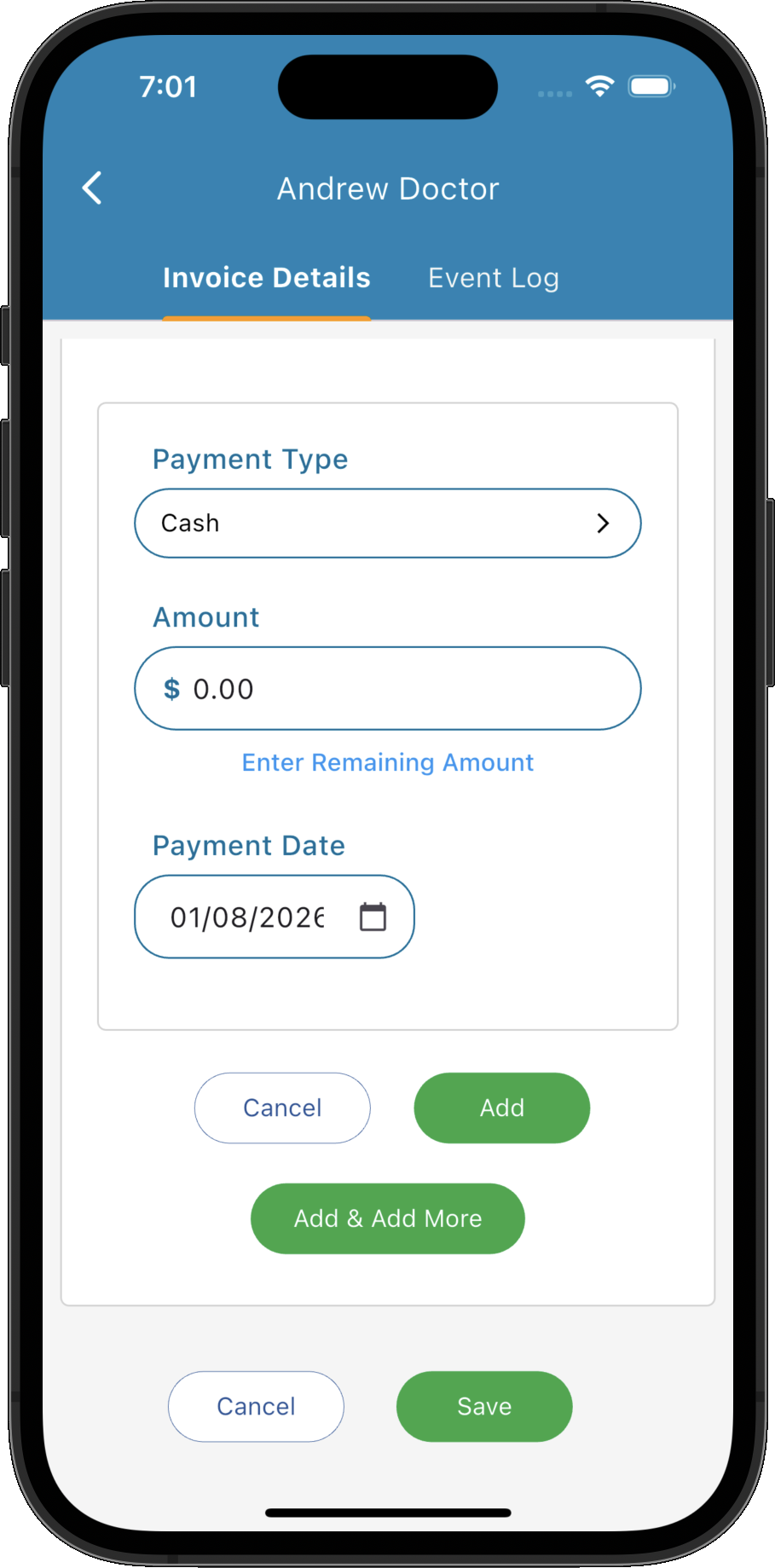
- Select the payment type.
- Enter the payment amount.
- Choose the payment date.
- Click Enter Remaining Amount to automatically populate the outstanding balance.
Selecting Manual expands the payment panel where you can:
Card Payments
- Enter new card details, or
- Select a previously saved card.
- Click Pay to process the transaction.
Selecting Card allows you to process a payment using your configured payment gateway.
Successful payments are automatically recorded against the invoice.
Save
Saves the invoice and any associated invoice items or payments.
Cancel
Closes the invoice without saving any unsaved changes.